
As your organization evolves, some SharePoint sites become inactive. Maybe a project is completed, a team restructured, or content is no longer actively used—but still holds value. Instead of deleting these sites, it’s smarter to archive them.
In this blog, we’ll walk through:
✅ What is meant by archiving a SharePoint site
✅ Step-by-step demo to archive a site using PowerShell
✅ What happens after a site is archived
✅ Best practices and recommendations
✅ Hands-on lab you can try
🔍 What Does Archiving a SharePoint Site Mean?
SharePoint Online does not have a built-in “archive” button, but we can effectively archive a site by:
- Making the site read-only
- Preventing any edits, uploads, or deletions
- Optionally hiding it from navigation and search
- Applying retention policies via Microsoft Purview
- Moving key documents to a long-term storage site (optional)
The goal of archiving is to preserve the site and its content without allowing further changes.
🧭 When Should You Archive a SharePoint Site?
You should consider archiving a site if:
- The project is completed (e.g., “ERP Migration 2024”)
- The team is disbanded or restructured
- No updates have occurred in the last 6–12 months
- You need to retain historical data for audit or compliance
- You’re decluttering your SharePoint structure
🛠️ DEMO: Archive a SharePoint Site by Making It Read-Only
We’ll use PowerShell to make the site read-only, which is the most common and effective way to archive.
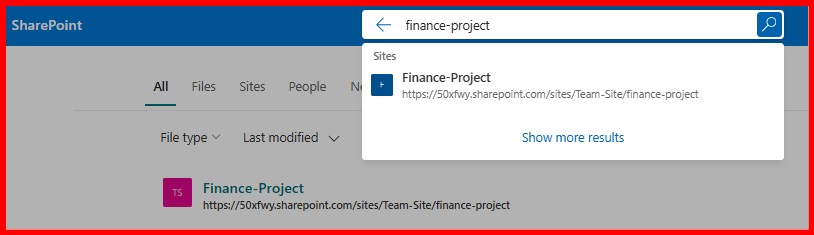
✅ Step 1: Identify the Site
Go to the SharePoint Admin Center:
- Navigate to Active Sites
- Search for the site you want to archive
- Copy the full site URL (e.g.,
https://yourtenant.sharepoint.com/sites/Team-Site/finance-project)
✅ Step 2: Connect to SharePoint Online via PowerShell
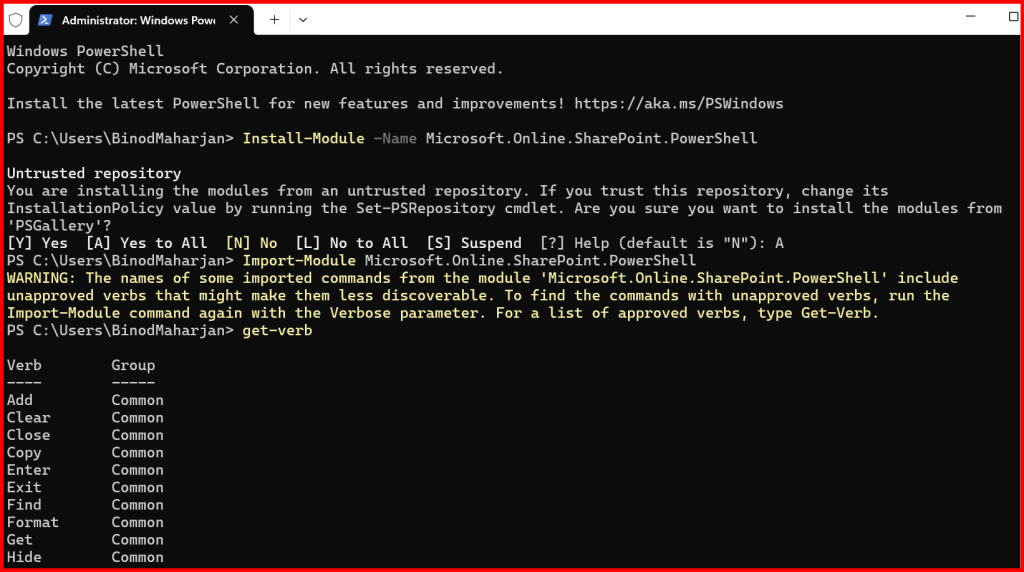
If not already installed, install the module:
Install-Module -Name Microsoft.Online.SharePoint.PowerShell
Import-Module Microsoft.Online.SharePoint.PowerShell
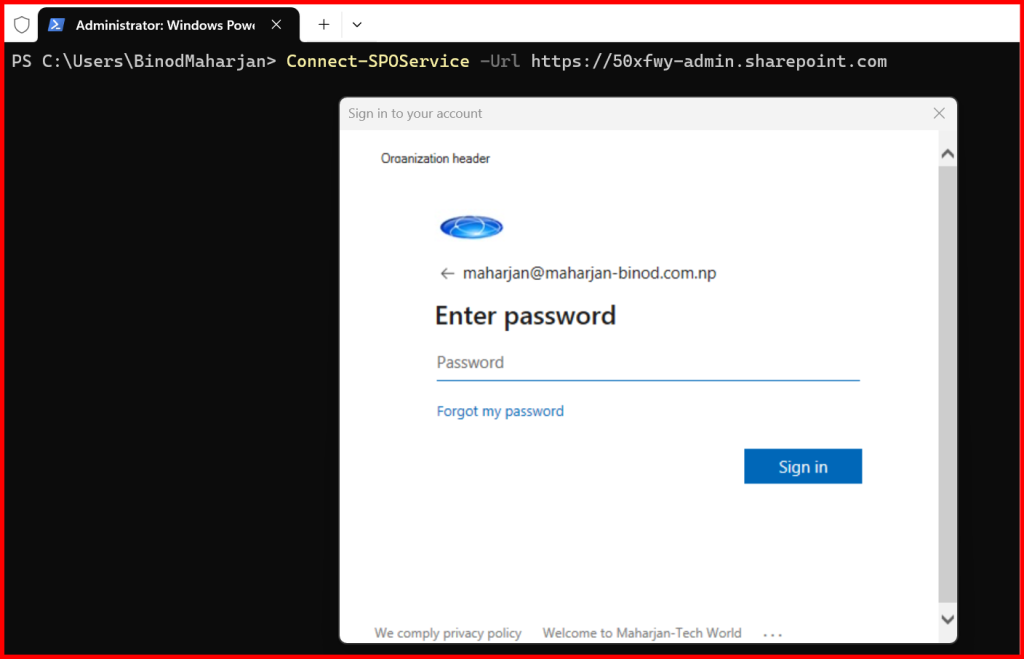
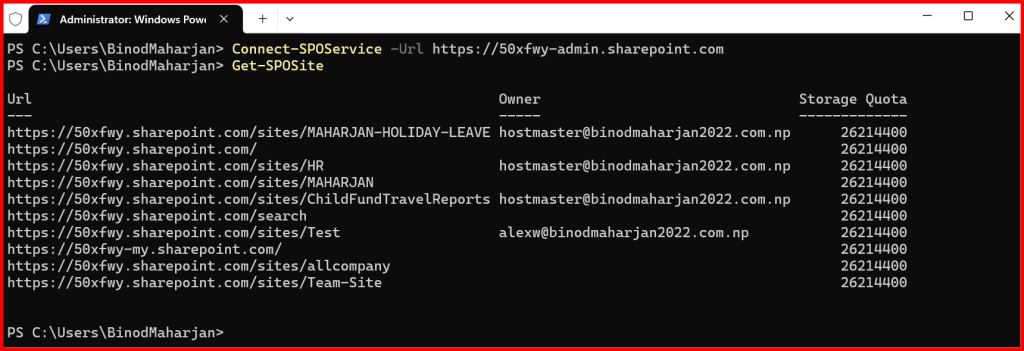
Then connect to your tenant:
Connect-SPOService -Url https://yourtenant-admin.sharepoint.com
✅ Step 3: Lock the Site to Read-Only Mode
Set-SPOSite -Identity https://50xfwy.sharepoint.com/sites/Team-Site/finance-project -LockState ReadOnly

I got error, because Subsite cannot archive only site collections can be archived. So, I am archiving parent site.
🔎 Verify the lock state:
Get-SPOSite -Identity "https://50xfwy.sharepoint.com/sites/Team-Site" | Select LockState

For Revert back or Unlock the site:
You can unlock it with the following PowerShell command:
Set-SPOSite -Identity "https://50xfwy.sharepoint.com/sites/Team-Site" -LockState Unlock
Get-SPOSite -Identity "https://50xfwy.sharepoint.com/sites/Team-Site" | Select LockState

✅ This command restores full read/write access to the site.
🔐 What Happens to an Archived SharePoint Site?
Once the site is archived (read-only), here’s what changes:
| Feature | Behavior After Archiving |
|---|---|
| View Content | ✅ Users can still view and download files |
| Edit/Upload/Delete | ❌ Not allowed |
| Create Pages or Posts | ❌ Blocked |
| Permission Changes | ❌ Not possible unless unlocked |
| Searchable | ✅ Still appears in search results (unless hidden) |
| Navigation | ⚠️ Recommended to remove from menus |
| Restore/Edit | ✅ Site can be unlocked anytime via PowerShell |
Example Message Users May See:
“This site is read-only at the moment. Contact your administrator for more information.”
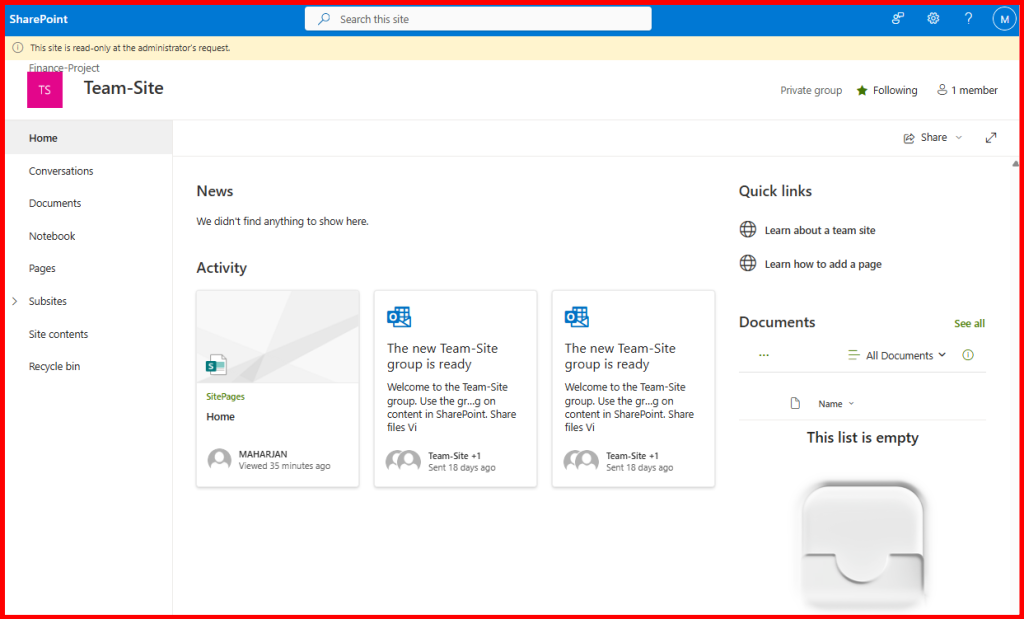
I noticed, Subsite also in lockstate.
📦 Optional: Move Content to an Archive Library
Instead of keeping full sites, some organizations prefer to move selected files to a centralized Archive Center.
Ways to do this:
- Microsoft Power Automate: Automatically move files older than X days
- PnP PowerShell: Migrate libraries or lists to another site
- Download manually for small-scale archiving
🧪 Hands-On Lab Exercise
🔧 Task: Archive the “HR Hiring Portal” site and validate read-only behavior.
Steps:
- Find and copy the site URL from SharePoint Admin Center
- Connect via PowerShell
- Run the
Set-SPOSitecommand withReadOnlylock - Remove it from hub navigation
- Try editing as a user to confirm the archive status
🏁 Conclusion
Archiving SharePoint sites is a crucial step in managing digital sprawl and ensuring compliance. Whether you’re wrapping up projects or simply organizing your environment, read-only archiving keeps data safe, clean, and accessible.
Remember: Archived ≠ Deleted. You can unlock it anytime!
Leave a Reply