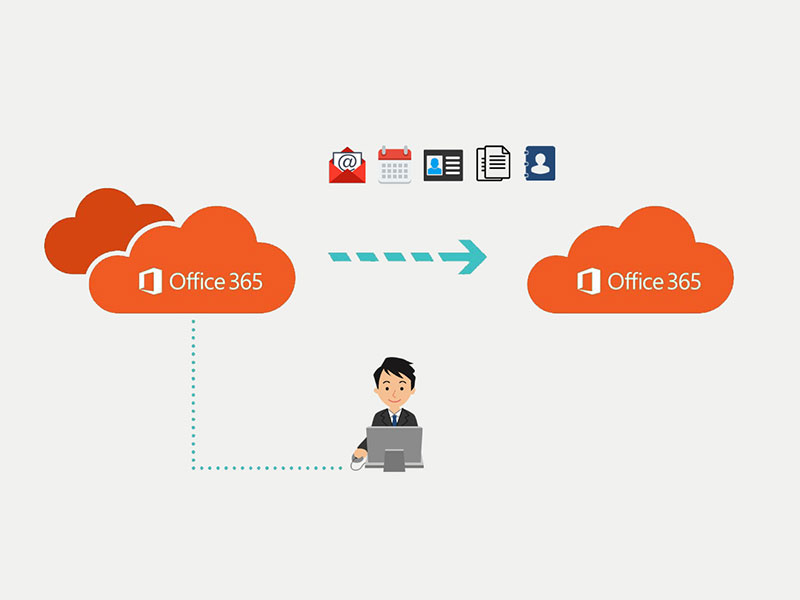
Cross-Tenant Migration
Cross-tenant migration is the process of migrating workloads from one Microsoft 365 tenancy to another. This process can involve the migration of one or many workloads (including Exchange Online, SharePoint, and OneDrive).
Migrating mailboxes between Microsoft 365 tenants is a critical task for organizations undergoing mergers, acquisitions, divestitures, or tenant restructuring. Proper planning and execution are essential to avoid downtime, data loss, or misconfiguration. This guide walks you through the migration process step by step.
Step 1: Pre-Migration Planning
Before starting the migration, thorough planning ensures a smooth transition.
- Inventory All Mailboxes and Resources
- Identify which mailboxes will be migrated: user mailboxes, shared mailboxes, archives.
- Note distribution groups, Teams, OneDrive accounts, and other dependencies.
- Check Permissions
- Ensure you have Global Admin or Exchange Admin roles in both source and target tenants.
- Verify Licensing
- Target tenant must have sufficient Microsoft 365 licenses for all mailboxes.
- Domain Verification
- Add and verify the domain in the target tenant if you want users to retain their email addresses.
- Choose a Migration Method
- Manual PowerShell Scripts (good for small migrations or pilots)
Step 2: Prepare Source Mailboxes
Before migrating, ensure your source mailboxes are ready.
- Check Mailbox Details
- Verify mailbox size, archives, and hidden folders.
- Export mailbox identifiers like ExchangeGUID, ArchiveGUID, LegacyExchangeDN.
- Back Up Mailboxes
- Always have a backup in case of errors.
- Notify Users
- Inform users about the migration schedule and expected downtime.
Step 3: Set Up Target Mailboxes
Create corresponding mailboxes in the target tenant.
- Create User Mailboxes
- Add new users with the same email addresses as in the source tenant.
- Assign Licenses
- Make sure each mailbox has an appropriate Microsoft 365 license.
- Verify Mailbox Accessibility
- Test login to confirm mailboxes are active.
Step 4: Map Mailboxes
Proper mapping ensures emails, archives, and aliases migrate correctly.
- Map Primary SMTP and Aliases
- Use the Primary SMTP and proxy addresses from the source mailbox.
- Map GUIDs
- Set ExchangeGUID for the primary mailbox.
- If the mailbox has an archive, set ArchiveGUID as well.
- Copy LegacyExchangeDN
- Add it as an
x500:address to preserve email continuity and avoid bounce-backs.
- Add it as an
Step 5: Migrate Mailbox Data
- Test with a Pilot Mailbox
- Select one or two mailboxes to validate the migration process.
- Run Full Migration
- Using Power Shell migrate emails, folders, calendar, and contacts.
- Monitor Migration Logs
- Ensure all data is successfully migrated and note any errors.
Step 6: Post-Migration Tasks
- Verify Mailbox Content
- Check emails, calendars, contacts, and folder structures.
- Check Permissions
- Validate shared mailbox access and folder permissions.
- Update DNS / Autodiscover Records
- Ensure MX records, SPF, DKIM, and Autodiscover point to the target tenant.
- Communicate to Users
- Confirm users can access their mailboxes without issues.
Step 7: Common Challenges and Solutions
- Large Mailboxes
- Break into smaller batches or migrate archive mailboxes separately.
- Calendar Conflicts
- Manually verify overlapping events after migration.
- External Contacts & Aliases
- Ensure
x500:addresses are included to prevent email bounce-backs.
- Ensure
- Shared Mailboxes and Teams
- Validate access and functionality post-migration.
Step 8: Best Practices
- Perform migration during off-hours to minimize disruption.
- Always back up source mailboxes.
- Document the migration process for auditing and future reference.
- Maintain a rollback plan in case of unforeseen issues.
Conclusion
A well-planned cross-tenant mailbox migration ensures a smooth transition with minimal downtime. Following these steps will help admins migrate mailboxes safely while preserving all data, permissions, and email continuity.
Leave a Reply