A Simple Guide for Beginners
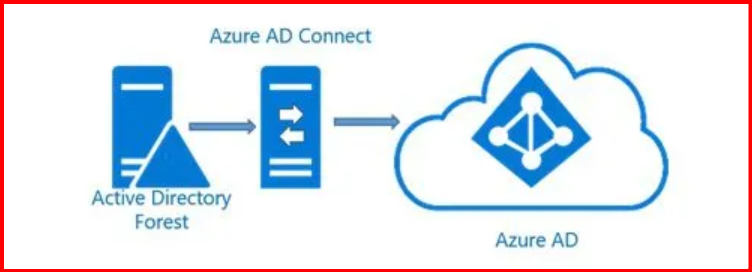
Before you install Azure AD Connect, you must make sure that your environment meets the basic requirements. This ensures a smooth installation and prevents sync failures later. Below are the essential prerequisites every beginner should know.
🔷 1. Active Directory Requirements (On-Prem Domain)
Azure AD Connect requires a healthy on-premises Active Directory environment.
✔ A Windows Server AD Domain
- Must be Windows Server 2003 or later
- Domain functional level Windows Server 2003 or higher
- Forest functional level Windows Server 2003 or higher
✔ Domain Must Be Routable
Your internal domain should be reachable from the server where Azure AD Connect is installed.
✔ A Verified Domain Name
The UPN suffix should match your Azure domain.
Example:
AD UPN: user@maharjan.local ❌ (Not supported)
Azure AD: user@maharjan.com ✔
If needed, add a new UPN suffix in AD:
Active Directory Domains and Trusts → Properties → UPN Suffix🔷 2. Azure AD Tenant Requirements (Cloud Environment)
You must have:
✔ An Active Azure AD Tenant
This can be created freely at: https://azure.microsoft.com
✔ A Verified Custom Domain
You must verify your company domain (example: maharjan.com) in Azure AD.
Azure Portal → Azure Active Directory → Custom domain names
✔ Required Administrator Account
You need:
- Azure AD Global Administrator
(Only required during installation)
After installation, you can remove this role for better security.
🔷 3. Server Requirements for Azure AD Connect
Azure AD Connect must be installed on a supported Windows Server.
✔ Supported Operating Systems
- Windows Server 2016
- Windows Server 2019
- Windows Server 2022
✔ Hardware Requirements (Minimum)
- CPU: 1.6 GHz
- RAM: 4 GB (8–16 GB recommended for larger orgs)
- Disk: At least 70–100 MB for installation
- .NET Framework: 4.7.1 or later
✔ Important Notes
- The server must be domain-joined
- Do NOT install Azure AD Connect on:
- A Domain Controller (not recommended)
- Exchange Server
- SQL Server hosting important data
Best practice:
🟢 Use a dedicated server just for Azure AD Connect.
🔷 4. Network & Connectivity Requirements
Azure AD Connect requires outbound internet access.
✔ Required Ports (Outbound)
| Port | Protocol | Purpose |
|---|---|---|
| 443 | HTTPS | Sync with Azure AD |
| 80 | HTTP | Certificate and endpoint checks |
| 389 | LDAP | On-prem AD queries |
| 636 | LDAPS | Secure LDAP (optional) |
✔ Firewall & Proxy
If using a proxy, ensure Azure AD Connect is permitted through it.
🔷 5. Account & Permission Requirements
✔ On-Prem AD Account
You will need:
- Enterprise Admin or
- Domain Admin (only during setup)
Azure AD Connect automatically creates a least-privilege sync account.
✔ Azure AD Account
- Must be Global Administrator
✔ Service Account
Azure AD Connect creates:
- MSOL_XXXXXX account (used for sync engine)
You do not need to create it manually.
🔷 6. SQL Requirements (Optional)
Azure AD Connect includes SQL Express by default — suitable for up to ~100k objects.
For larger environments:
Use Full SQL Server if:
- More than 100k directory objects
- You need clustering
- You want high availability
Supported SQL versions:
- SQL Server 2012 → SQL Server 2019
🔷 7. Supported Environments
Azure AD Connect supports:
✔ Single Forest
Most common scenario.
✔ Multi-Forest
Including:
- Resource forests
- Account forests
- Trust relationships
✔ Disjoint Namespaces
Supported with proper configuration.
✔ Hybrid Environments
AD + Azure AD + Microsoft 365
🔷 8. Health Check Before Installation (Recommended)
Before installing, ensure:
✔ Active Directory health is good
Run:
dcdiag /v
repadmin /replsummary
✔ DNS is working correctly
Azure AD Connect depends heavily on AD DNS.
✔ Time synchronization is correct
Time skew can break authentication.
⭐ Conclusion
Before installing Azure AD Connect, it is important to ensure:
- Your Active Directory domain is healthy
- Your Azure AD tenant is set up and verified
- You have the necessary permissions
- Your server meets the system requirements
- Network connectivity is properly configured
Once these prerequisites are met, you’re ready to install Azure AD Connect smoothly and start your hybrid identity journey.
Leave a Reply