We’ve all been there—you hit Send, and instantly realize you sent the message to the wrong person, forgot an attachment, or noticed a mistake. If you’re using Microsoft 365 (Outlook), there is a way to attempt to “unsend” or recall an email—but there are a few important limitations.
This guide explains how to delete or recall a sent email in Outlook, when it works, when it won’t, and what safer alternatives you can use in the future.
⭐ Can You Actually Delete a Sent Email in Microsoft 365?
Yes—but only under specific conditions.
Outlook’s Email Recall feature allows you to:
✔ Delete unread copies of the email from recipients’ inboxes
✔ Replace the original message with a corrected one
However, this only works when:
- You and the recipient are using Microsoft 365 or Microsoft Exchange within the same organization
- The email has not been opened
- The recipient is using Outlook for Windows (not Mac, mobile, or web)
If these conditions are not met, recall may fail.
🧠 In Simple Terms
| Feature | What It Does | What It Does NOT Do |
|---|---|---|
| Recall This Message | Tries to delete the original email from recipient’s inbox | Doesn’t work externally or after message is read |
| Resend This Message | Creates a new email using the old one | Does not remove or affect the old email |
⭐ How to Recall or Delete a Sent Email in Microsoft 365 (Outlook for Windows)
Follow these simple steps:
Step 1: Open Outlook
Launch your Outlook app on your Windows computer.
Step 2: Go to your Sent Items folder
Find the message you want to recall.
Step 3: Double-click to open the email
Make sure it opens in its own window (not in the reading pane).
Step 4: Go to the Message tab
At the top menu, select:
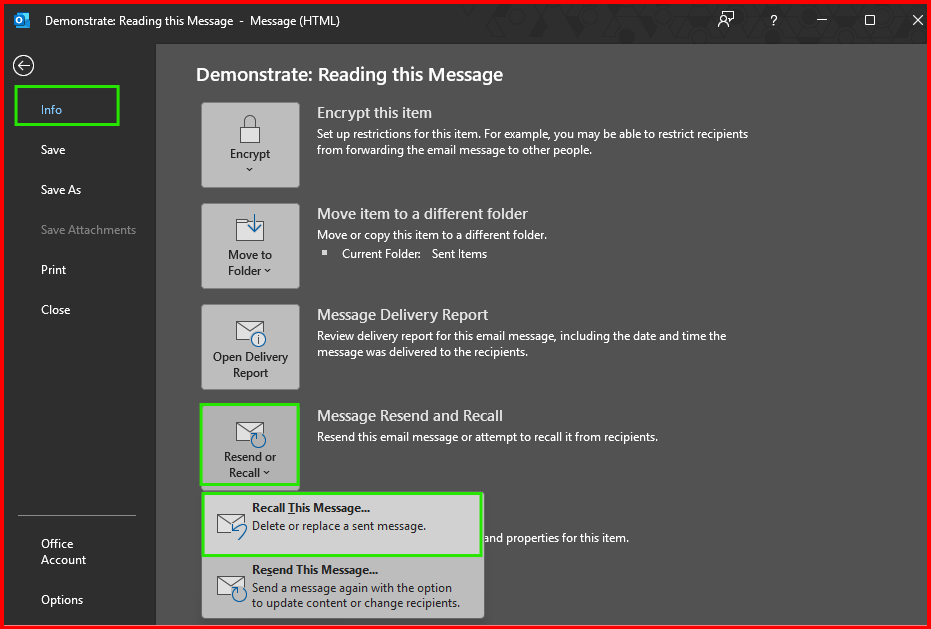
Message → Actions → Recall This Message
Step 5: Choose your recall option
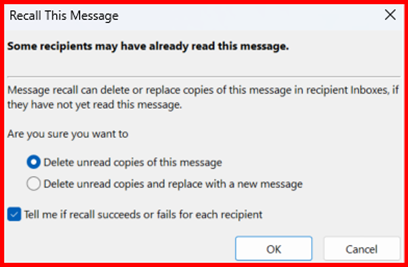
You will see two choices:
- Delete unread copies of this message
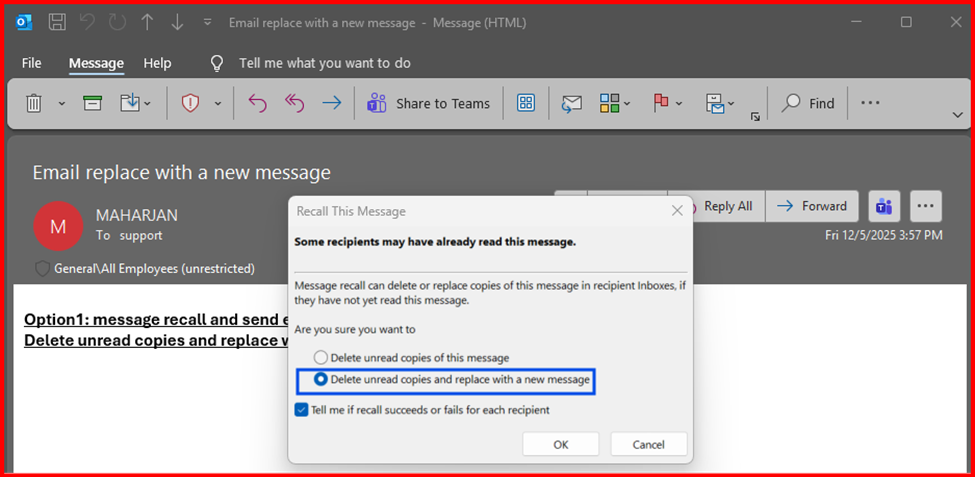
- Delete unread copies and replace with a new message
Select the option you want, then click OK.
Step 6: (Optional) Send a replacement email
If you chose to replace the message, Outlook opens a new email window with the original content. Edit and click Send.
⭐ What Happens Next?
Outlook will attempt to recall the message.
You may receive a notification confirming:
- Recall successful
- Recall failed (if the email was already opened or the system doesn’t support recall)
🟦Scenario1 Demo: The Email Was Sent Internally (Inside Your Organization)
If both sender and recipient are in the same Microsoft 365 tenant, you have two options.
Option 1 — Try Outlook Message Recall
In my Lab Testing Scenario, two Users from same organization.
| Sender | Recipient |
| maharjan@maharjan-binod.com.np | Support@maharjan-binod.com.np |
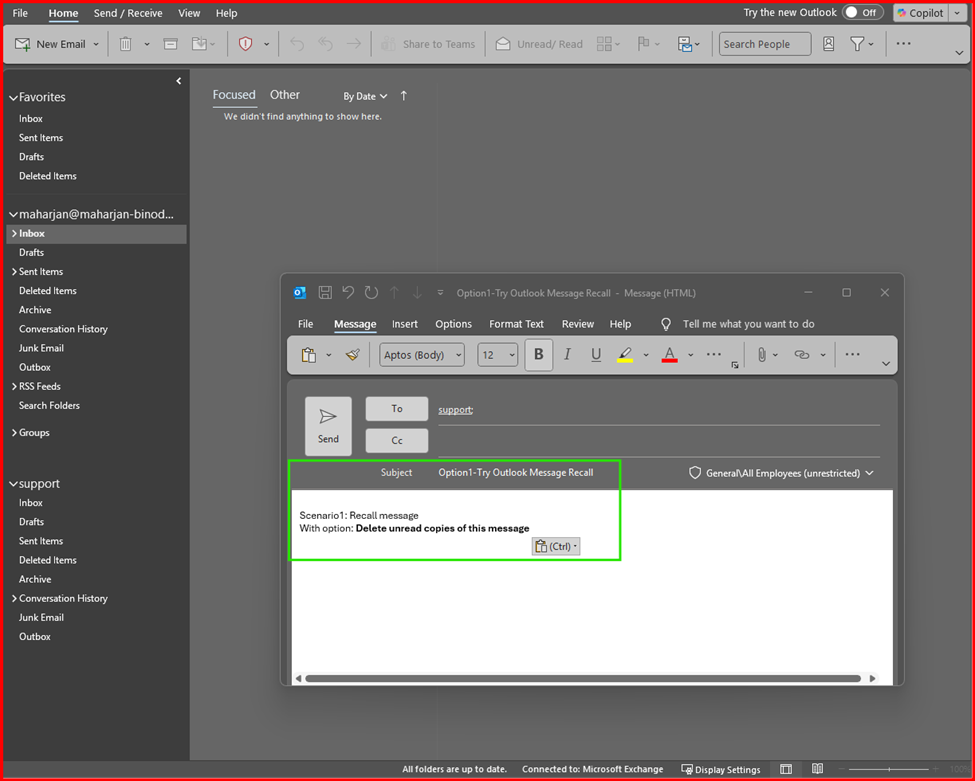
First: Sender send email to recipient.
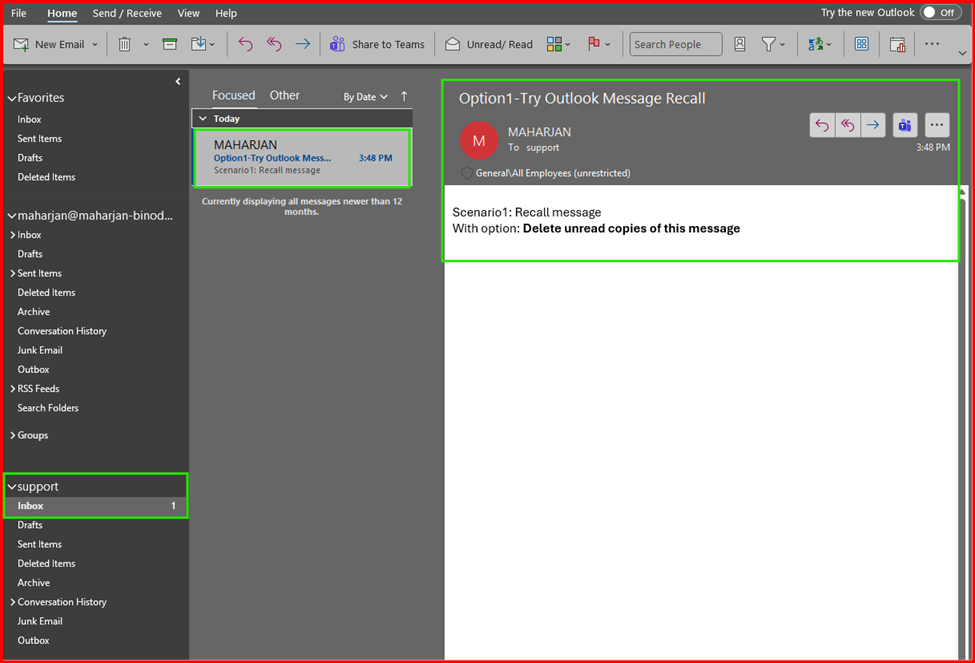
Second: Recipient Received the email. (Note: Below Email Shown is Unread Message.)
Third: Sender Perform Recall Message to Delete email.
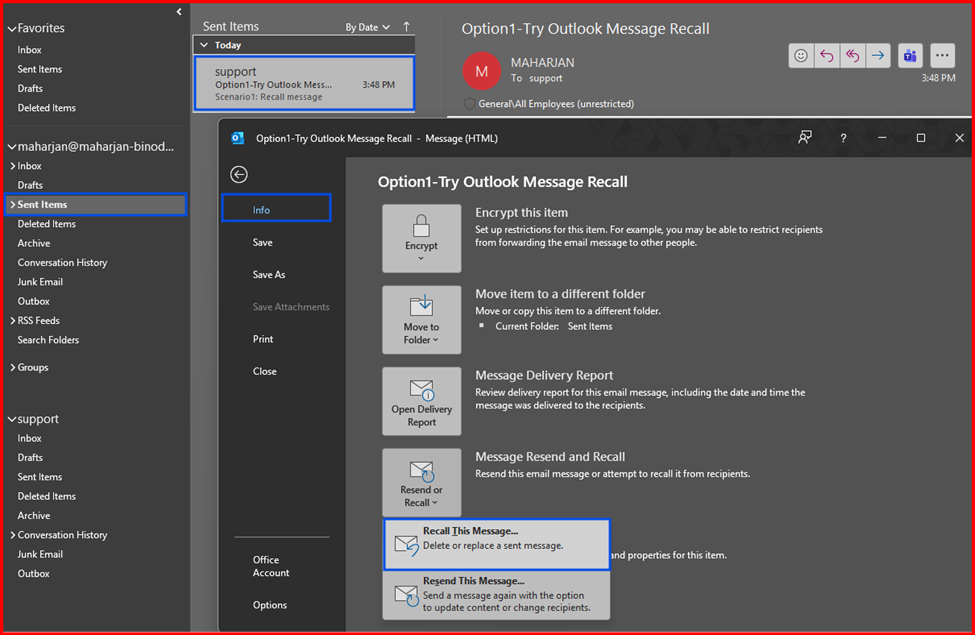
I am demonstrating first one:
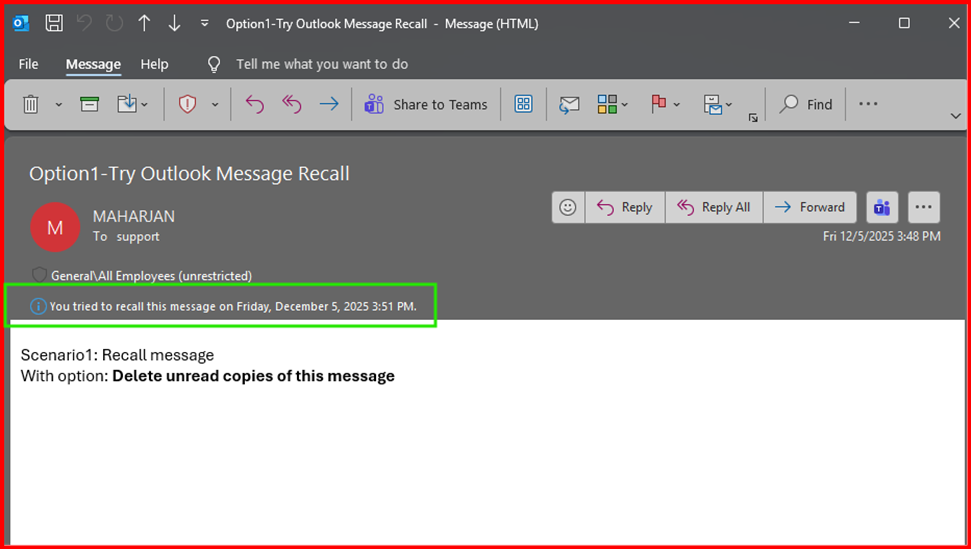
Fourth: Sender will get notify with Message Recall Status Report.
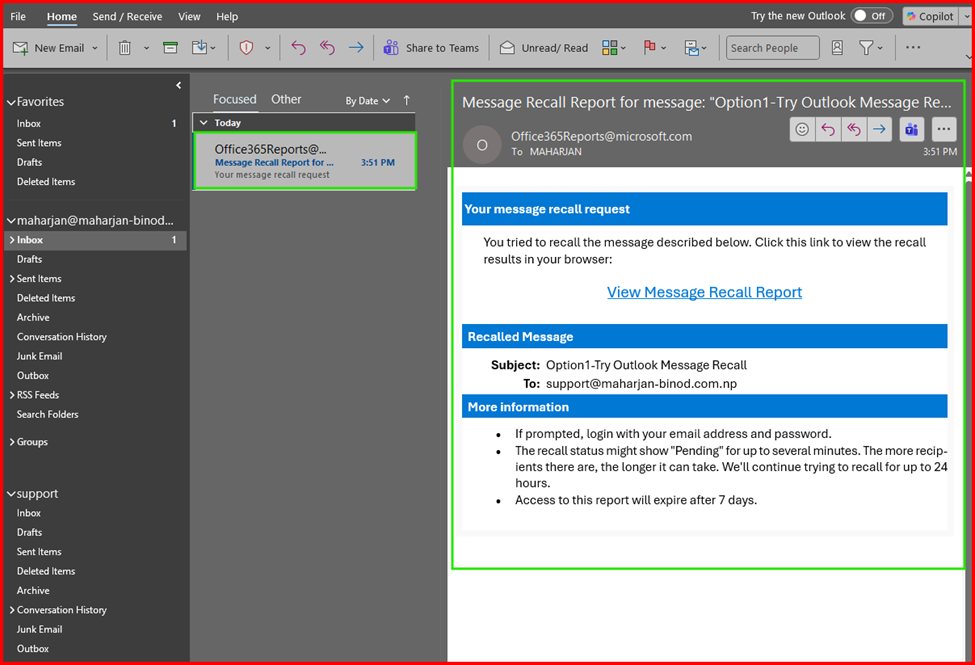
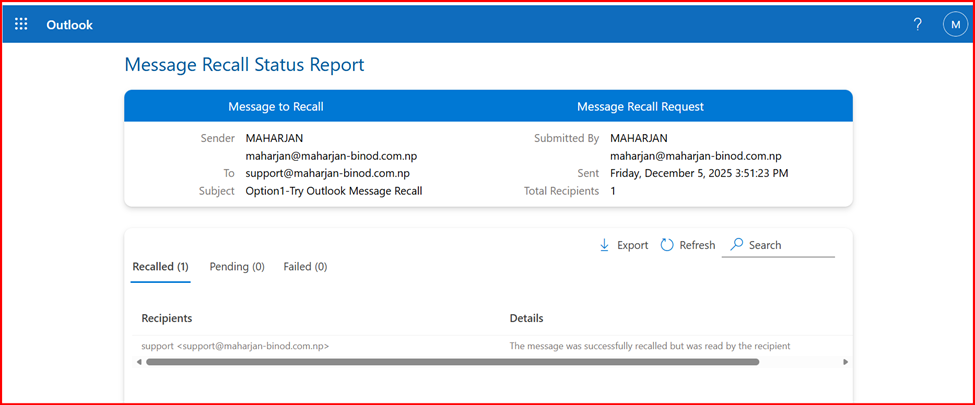
Fifth: In Recipient Inbox message will be disappear.
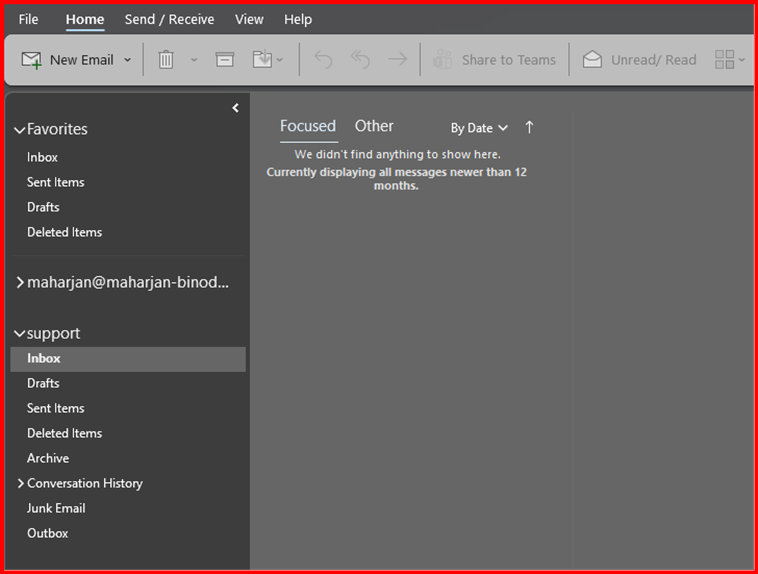
Done! Demonstrated: Delete unread copies of this message.
Let’s Demonstrate: Delete unread copies and replace with a new message.
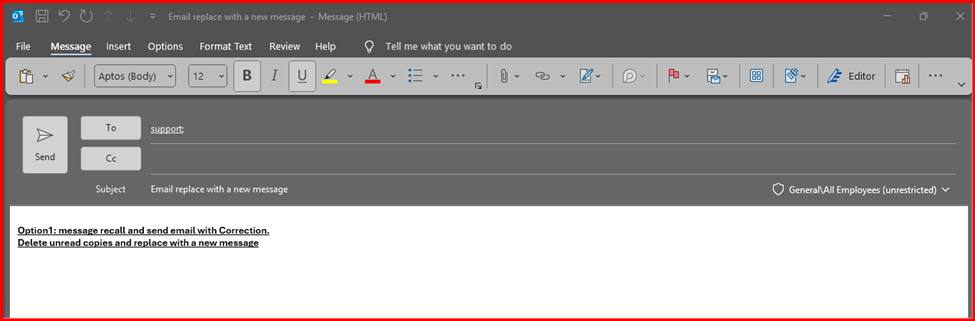
First: Sender send email.
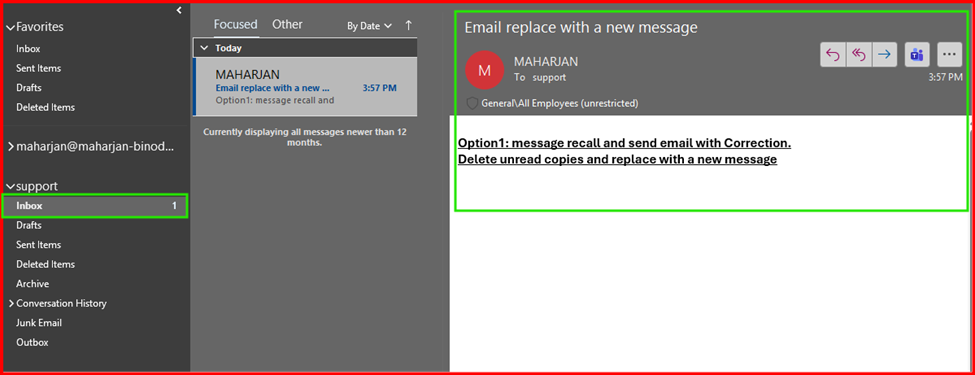
Second: Recipient receipt the email still the same message is unread.
Third: Sender recalled unread message and replace with a new message.
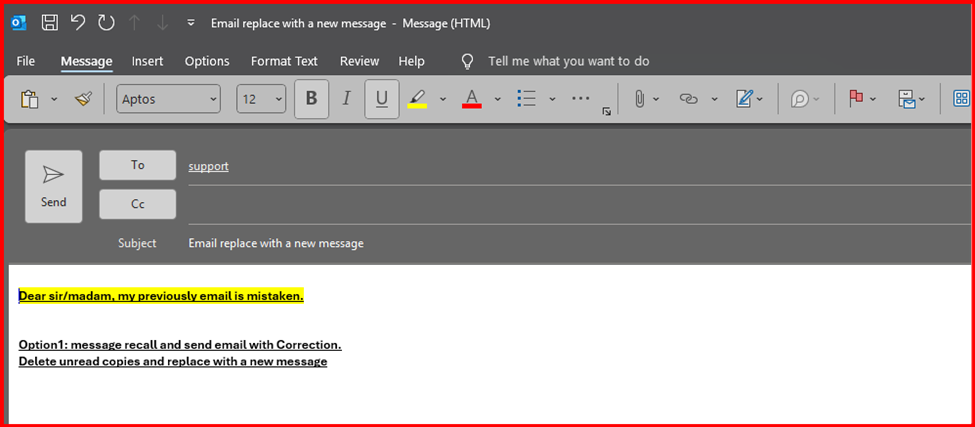
After choosing this email, sender replace with a new message and send again.
Fourth: Sender get Message Recall Report.
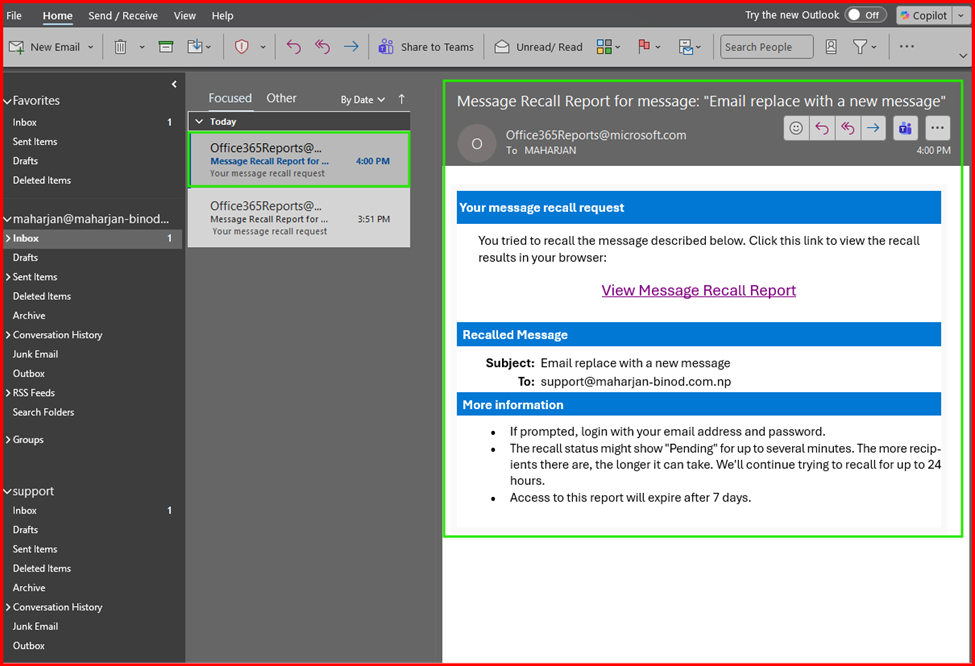
Fifth: Recipient receive an new email message.
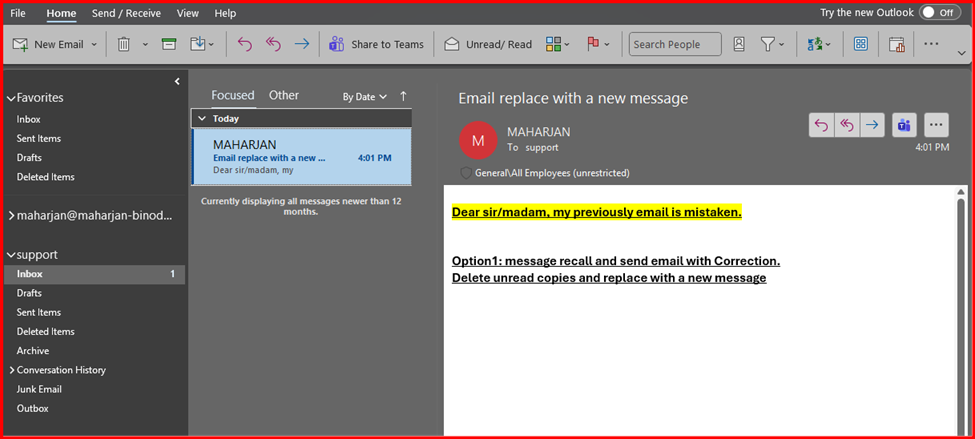
Done! Demonstrated: Delete unread copies and replace with a new message.
Option2: Resend this Message.
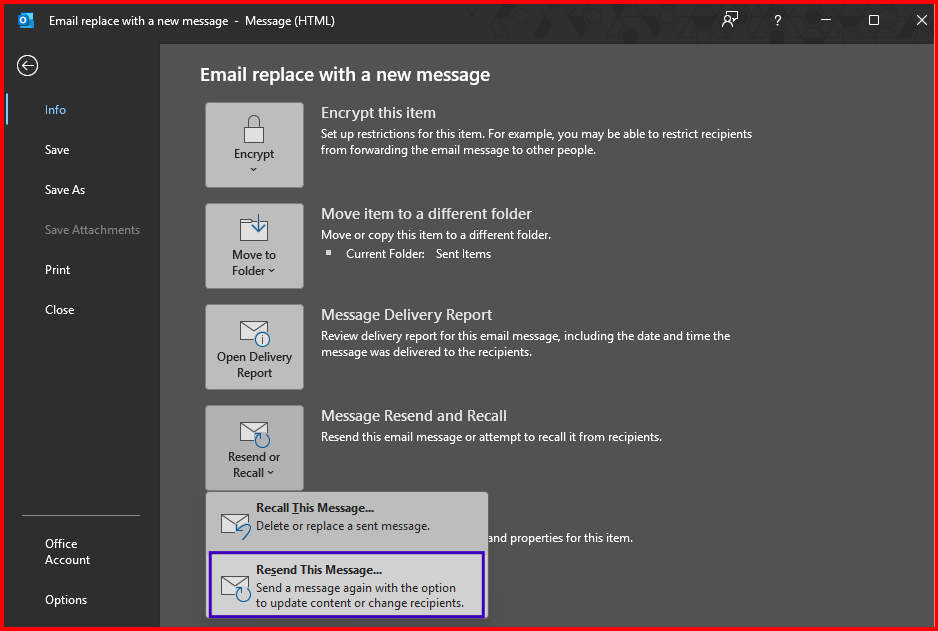
Sending and Receiving email message steps is same above.
First: Previous Email.
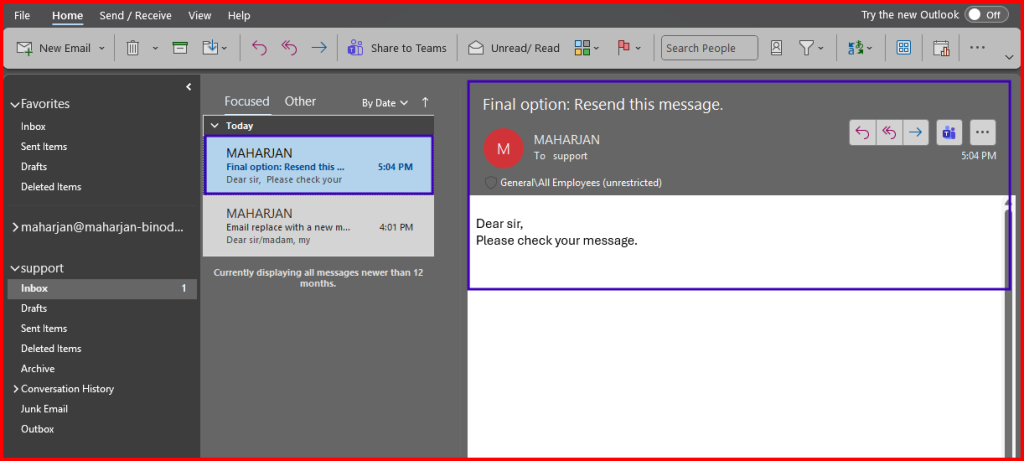
Second: Sender resend message with correction in content.
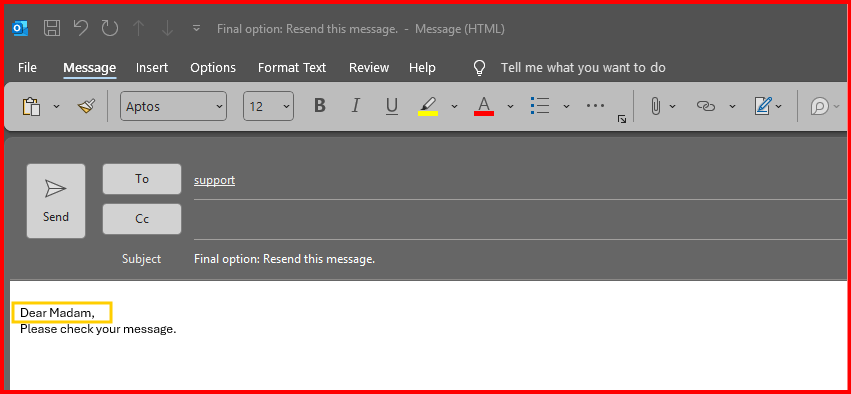
Third: Recipient receive email with correction but in new thread message.
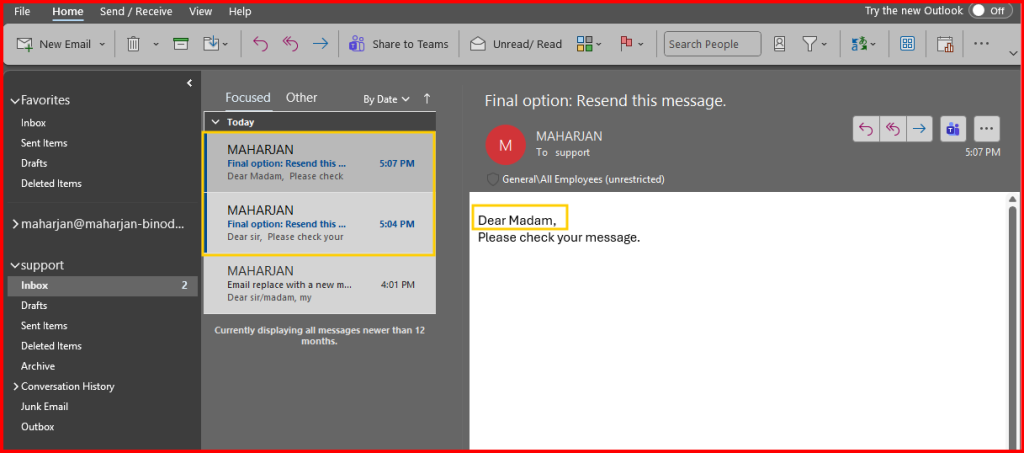
Done! Demonstrated with resend this message option.
Let’s Demonstrate What if Recipients read the email.
First: Recipient read the email.
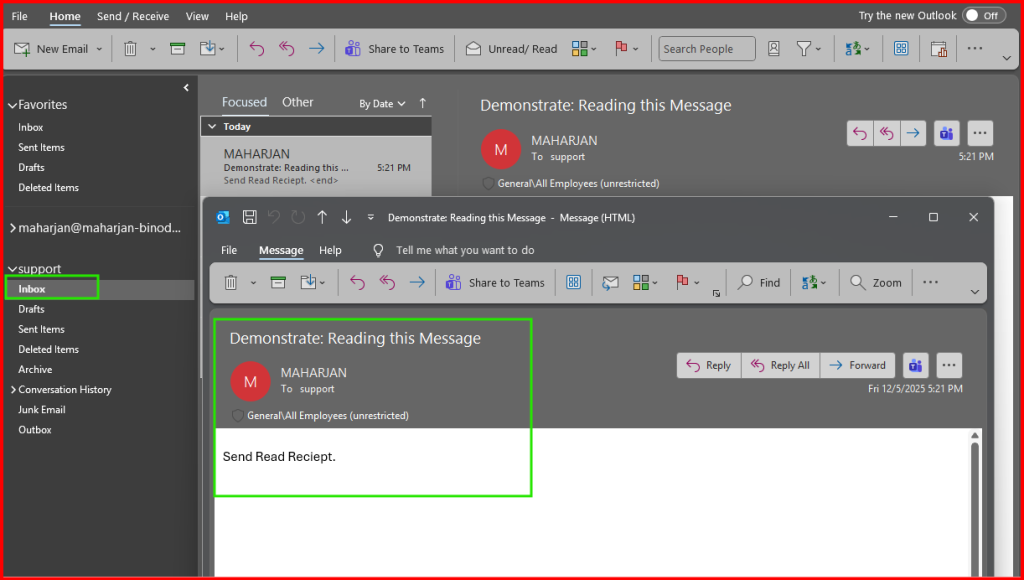
Second: Sender recall this message.
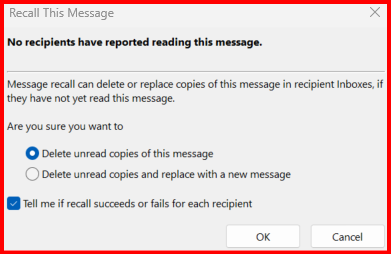
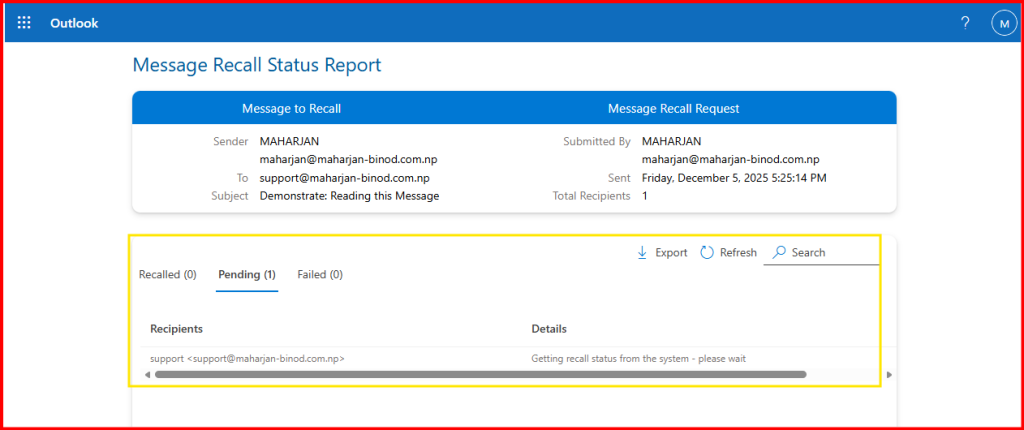
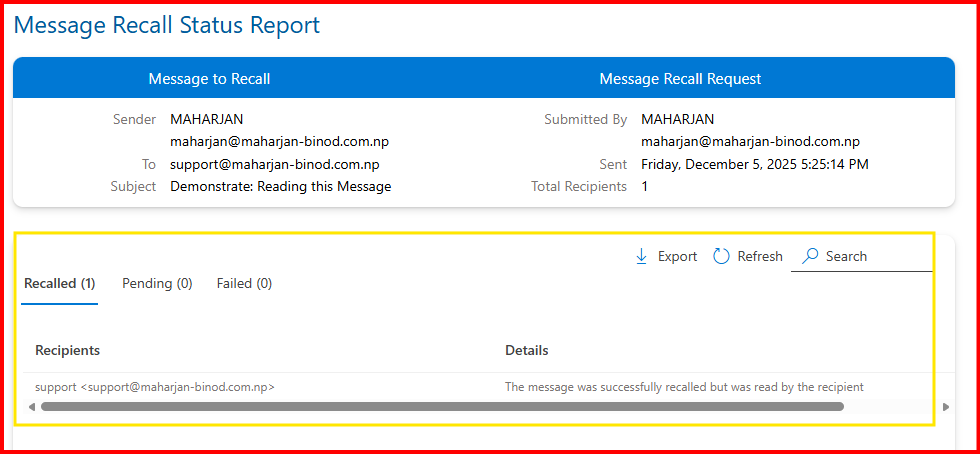
Third: After Sender Review the Message Recall Status Report: Recalled Successful. Recipient Inbox Mail disappear.
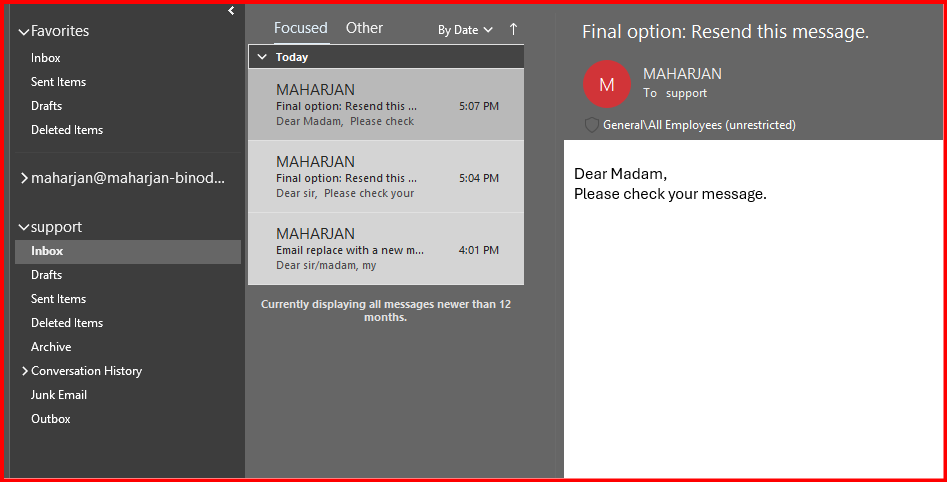
Done! Work Successfully.
⭐ Why Email Recall Might Not Work?
Recall will fail in these situations:
❌ The recipient opened the email
❌ The recipient uses Gmail, Yahoo, or any external email system
❌ Recipient is on Outlook for Mac, Outlook mobile, or Outlook on the web
❌ Email passed through a rule or was moved from Inbox
❌ You and the recipient are not in the same Microsoft organization/domain
If you see “Recall Failed,” there’s no way to force delete the email.
🟧 Scenario 2 Demo: The Email Sent to an External User
Here is where people often get confused…
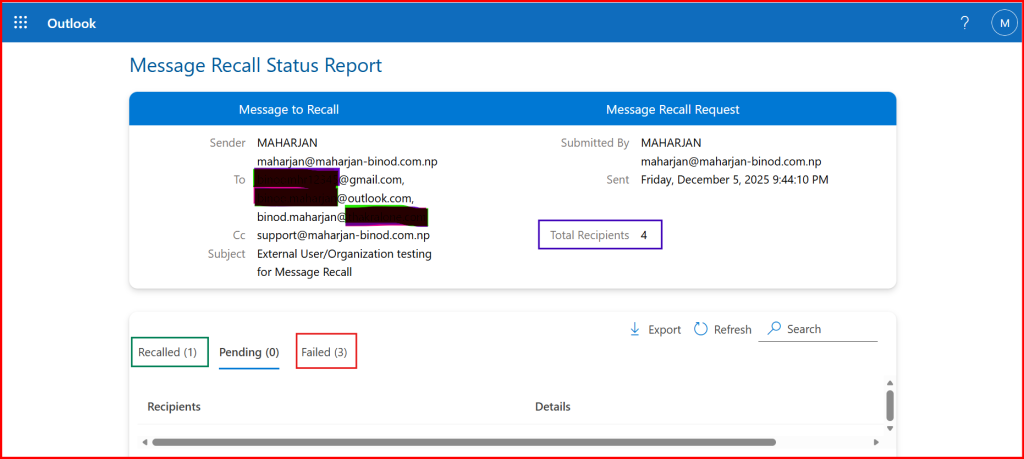
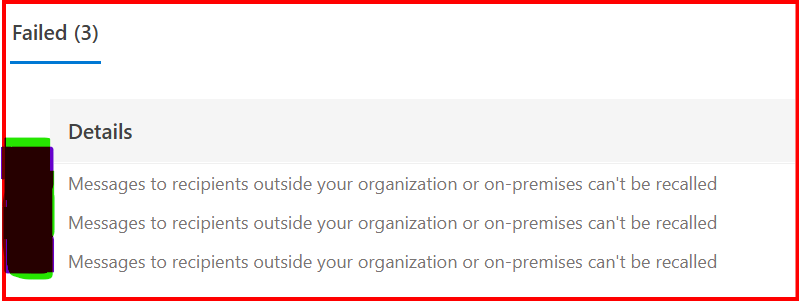
❌ You CANNOT delete an email from an external mailbox.
Once the email leaves Microsoft 365 and lands in another provider’s mailbox, Microsoft cannot remove it.
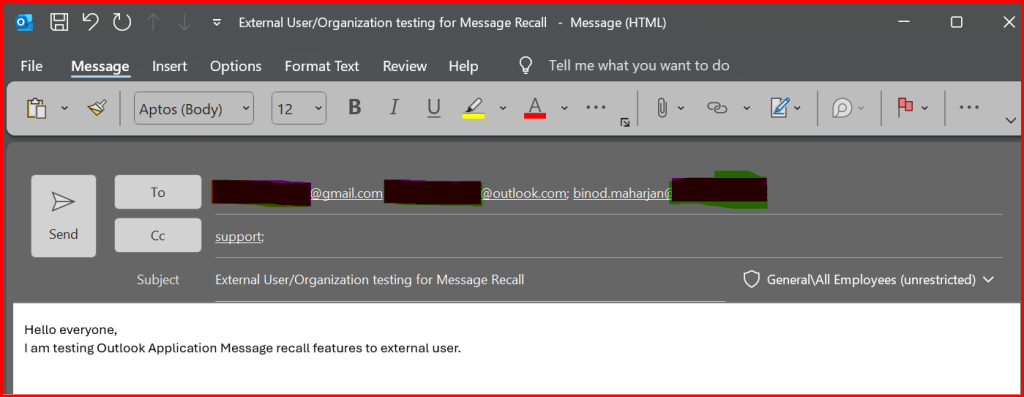
First: Sender Send email to External Domain User and one internal user.
Second: Sender recall the message again and got Recall message status report.
⭐ Pro Tips to Avoid Sending Wrong Emails in the Future
🔹 Enable “Undo Send” (delayed sending)
🔹 Double-check recipients before sending
🔹 Use Outlook Rules to delay all outgoing mail by 1–2 minutes
🔹 Preview attachments before sending
⭐ Final Thoughts
Outlook’s email recall feature is helpful but limited. It works best inside the same organization and only if the email is unread. For reliable protection, enabling Undo Send or setting a delivery delay rule is your best long-term solution.
Leave a Reply