Managing DNS in an Active Directory environment is critical for domain functionality. Since DNS records are tightly integrated with AD DS, ensuring a reliable backup and restore strategy is essential for disaster recovery, corruption fixes, or migration scenarios.
In this guide, I’ll walk you through how to take a full backup of DNS and how to restore it properly, using built-in Windows Server tools. This process applies to Windows Server 2016, 2019, 2022, and 2025.
Why DNS Backup Matters?
DNS is the backbone of Active Directory. Without healthy DNS zones:
- Domain controllers cannot locate each other
- Clients fail to authenticate
- Group Policies stop applying
- Replication breaks
- Applications relying on AD queries fail
A solid DNS backup ensures you can recover quickly from:
- Accidental deletion of DNS records
- Corrupted DNS zones
- Misconfiguration
- DC failures
1. Understanding How AD-Integrated DNS Works
Before performing backup and restore, understand how DNS behaves in AD:
- AD-Integrated zones are stored inside the Active Directory database (NTDS.dit)
- Changes replicate automatically to all domain controllers holding the DNS role
- Backup of DNS is included in System State backup
So, unlike standalone DNS servers, you don’t manually backup zone files — you back up the entire AD System State.
2. Backing Up Active Directory DNS
There are two recommended backup methods:
Method 1: Backup Using Windows Server Backup
Step 1: Install Windows Server Backup
On the Domain Controller:
Install-WindowsFeature Windows-Server-BackupStep 2: Launch Windows Server Backup
Start → Windows Administrative Tools → Windows Server Backup
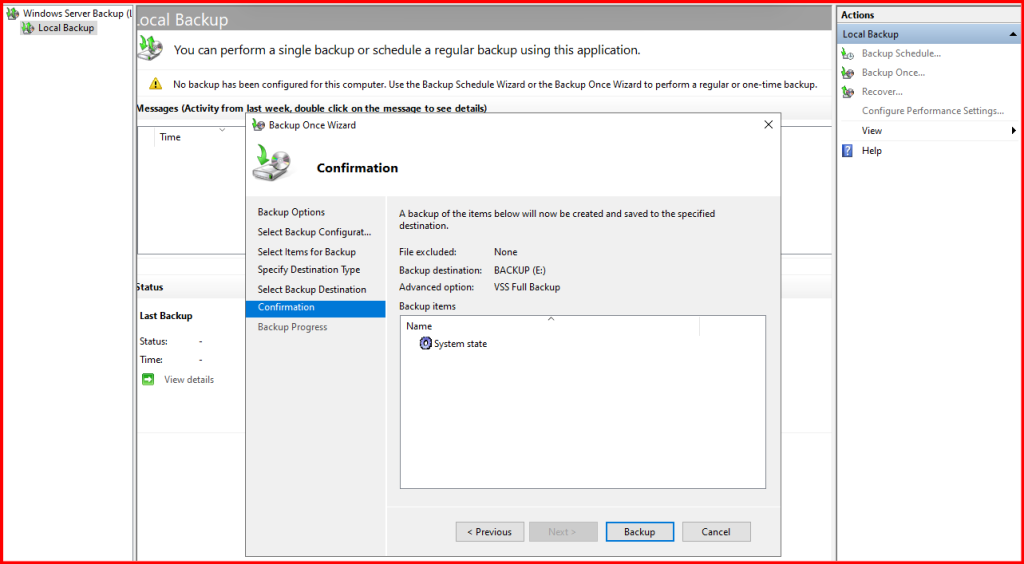
Step 3: Create a Backup
- Click Local Backup
- Select Backup Once or Backup Schedule
- Choose Custom
- Add System State
- Select your backup destination (recommended: external drive)
What System State Includes?
- Active Directory Domain Services
- DNS Server
- SYSVOL
- Registry
- Boot files
This is the best and most reliable backup for DNS because the DNS database is inside AD DS.
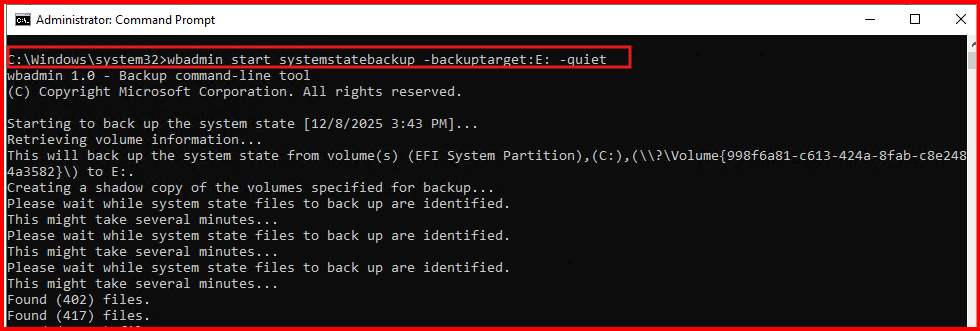
Method 2: Backup Through Power Shell (Preferred for Automation)
Run:
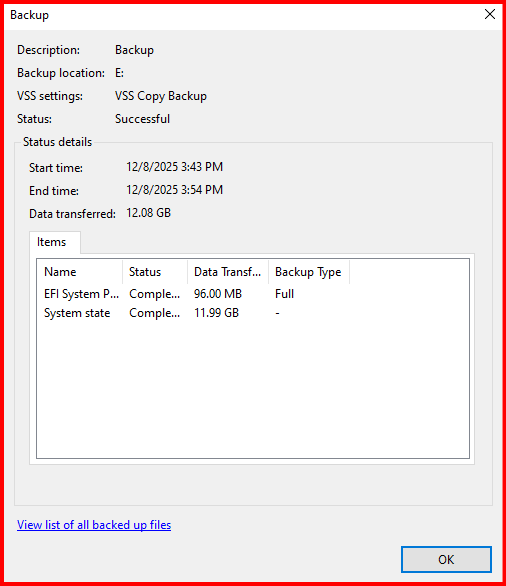
wbadmin start systemstatebackup -backuptarget:E: -quietReplace E: with your backup disk path.
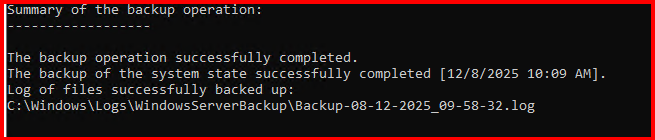
You can schedule this through Task Scheduler for daily or weekly backups.
3. Exporting DNS Zones (Optional Additional Backup)
Although AD-integrated DNS is covered by System State, some admins still export zones manually as an extra safeguard. dnscmd is a legacy command-line tool included with Windows Server.
A. Export a zone using Power Shell:
dnscmd <ServerName> /zoneexport <ZoneName> <BackupFileName.dns>
Example:
dnscmd pdc /zoneexport maharjan.local >E:\DNSBackup\maharjan_local.dns.bak
Output will be saved in (By Default):
%systemroot%\system32\dns\⚠️ Note: The exported .dns file is binary and cannot be opened in Notepad.
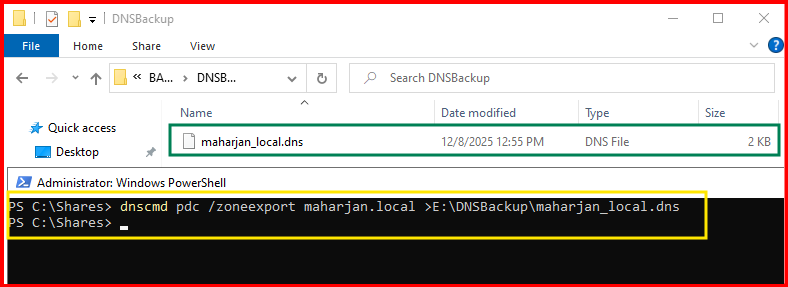
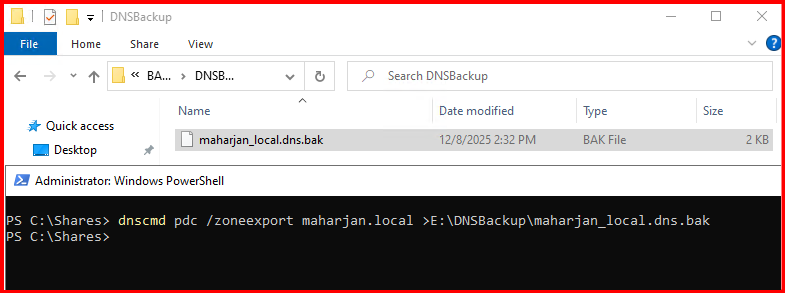
This ensures you have all configuration and zone files safe.
B. Human-Readable Backup with Power Shell
To create a readable backup (TXT or CSV) of DNS records:
Export as TXT:
Get-DnsServerResourceRecord -ZoneName “maharjan.local” | Out-File “E:\DNSBackup\maharjan_local_readable.txt”
Export as CSV:
Get-DnsServerResourceRecord -ZoneName "maharjan.local" |
    Select-Object HostName,RecordType,TimeToLive,RecordData |
    Export-Csv "E:\DNSBackup\maharjan_local_readable.csv" -NoTypeInformation
4. Restoring Active Directory DNS
Restoring AD-integrated DNS zones and all records from a Windows System State backup is the recommended method because, in AD-integrated zones, DNS records are stored in Active Directory.
1. Preconditions
- You must have a System State backup of a Domain Controller where DNS is installed.
- The server you are restoring to should ideally be the same DC, or you should be doing an authoritative restore carefully if it’s a different DC.
- Ensure DNS Server service is installed.
2. Backup System State (if not already done)
3. Restore Full DNS Backup
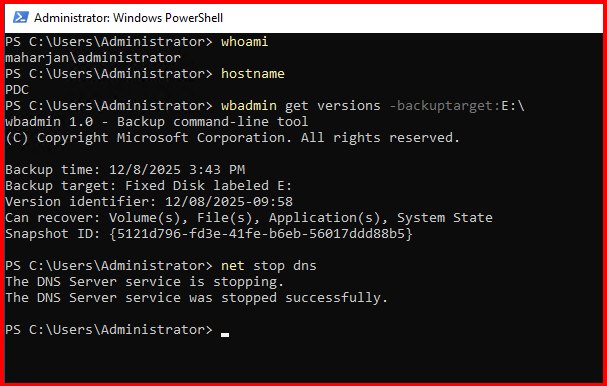
- Stop the DNS server:
net stop dns - Start System State Restore:
List available backups: wbadmin get versions -backuptarget:E:\AD_Backup
- Note the version identifier you want to restore.
Start the restore: wbadmin start systemstaterecovery -version: -authsysvol
Parameters explained:
-version:<version_identifier>→ Version of the backup to restore-authsysvol→ Ensures SYSVOL is restored correctly for replication
The restore will replace Active Directory and DNS data with the backup state.
Backup & Restore AD-DNS Demonstration:
First: Let’s assume your DNS zone file corrupted or any of the records deleted. In my lab, i already taken backup of DNS and i will delete myself for testing purpose.
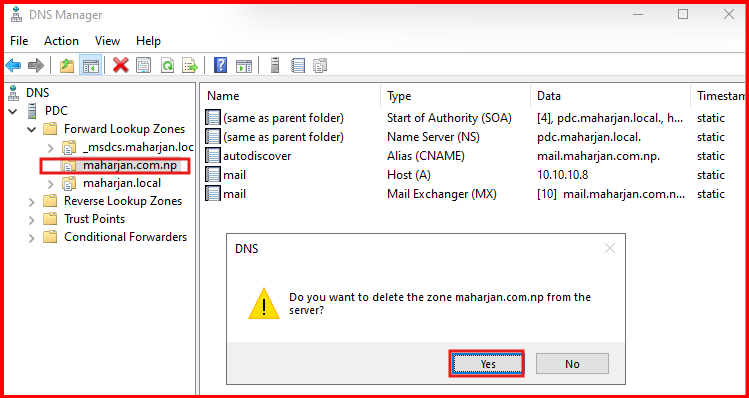
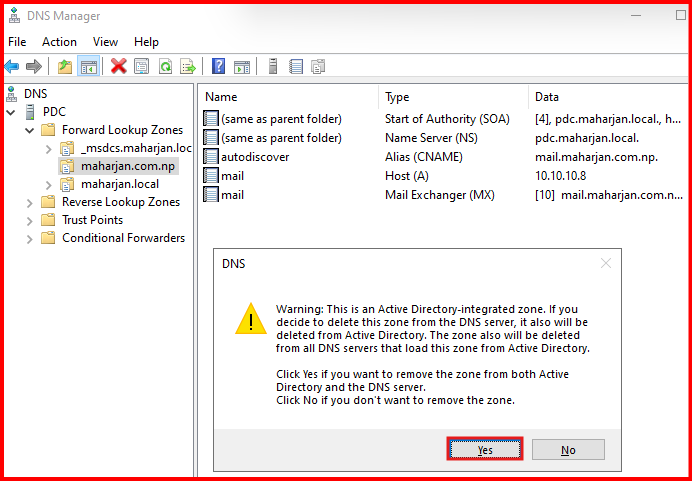
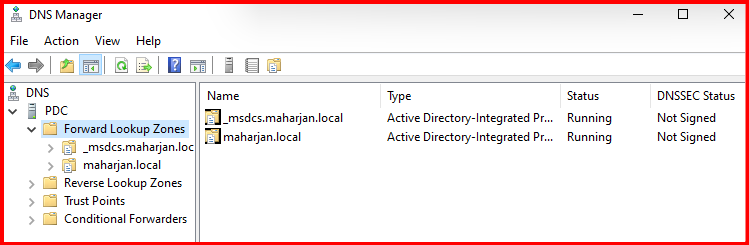
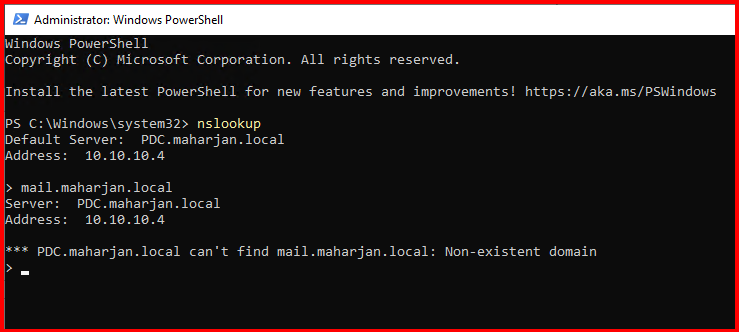
Second: DNS Zone and it’s record all deleted (Assuming corrupt, missing or deleted). Let’s restore from Backup.
wbadmin get versions -backuptarget:E:\
wbadmin start systemstaterecovery -version:”12/08/2025-09:58″ -authsysvol
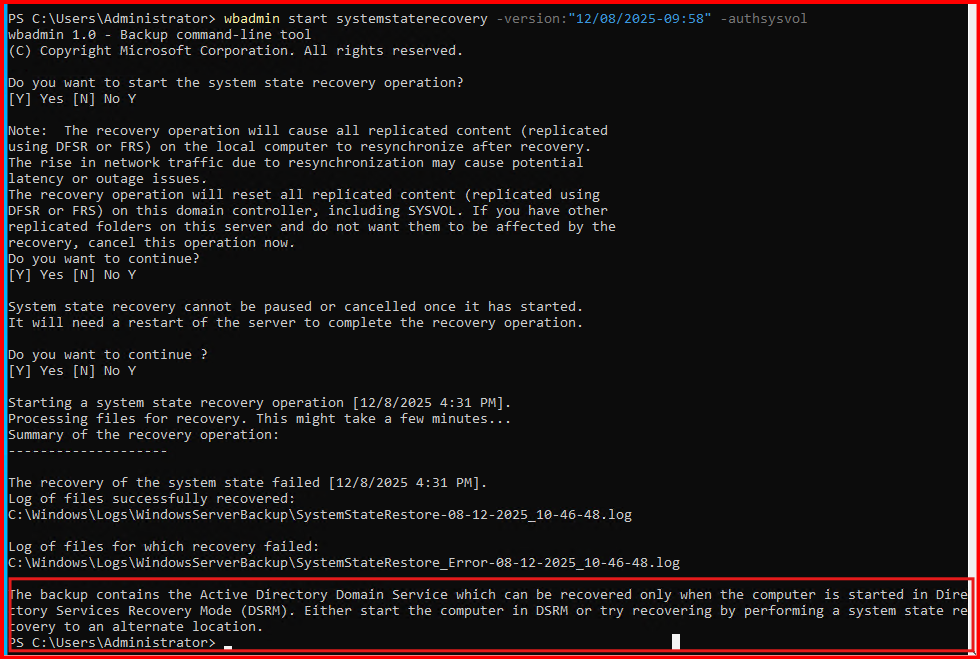
You can use bcdedit to force the next boot into DSRM:
bcdedit /set {default} safeboot dsrepair
shutdown /r /t 0
Explanation:
/set {default} safeboot dsrepair→ Configures the system to boot into DSRM on next restartshutdown /r /t 0→ Immediately restart the server
Check Boot Mode with bcdedit
Open Command Prompt and run:
bcdedit /enum | find "safeboot"- If the output shows
safeboot dsrepair, the server is configured to boot into DSRM.
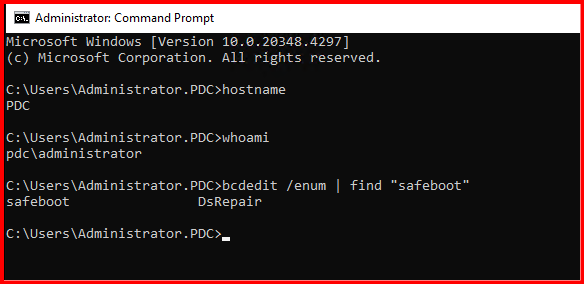
Note: Login DC from Local administrator account.
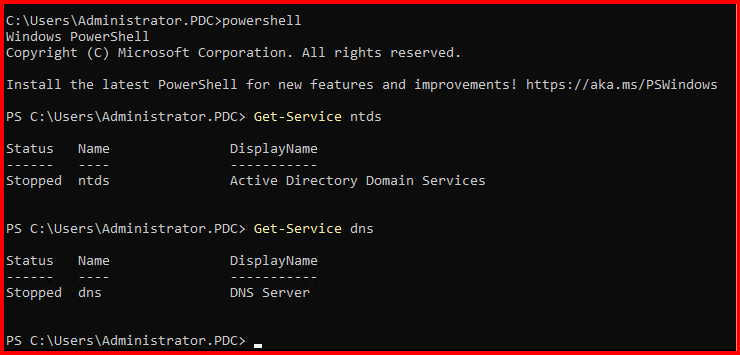
Let’s try to recover from backup again in DSRM mode:
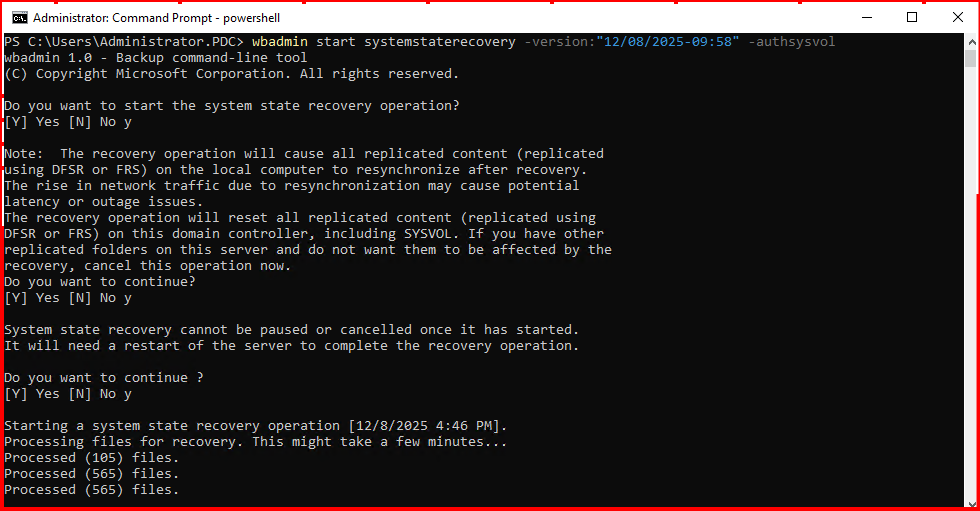
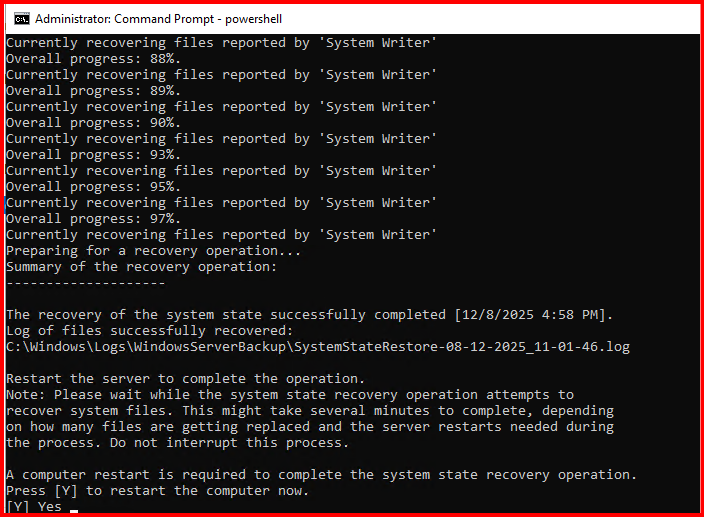
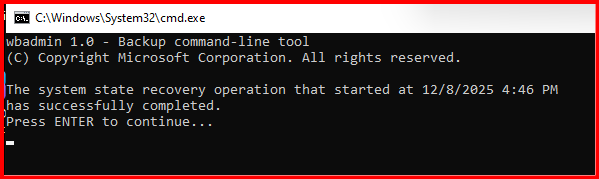
Recovery process completed.
After restoring the system state, remember to disable safeboot:
bcdedit /deletevalue {default} safeboot
Login with Domain Administrator.
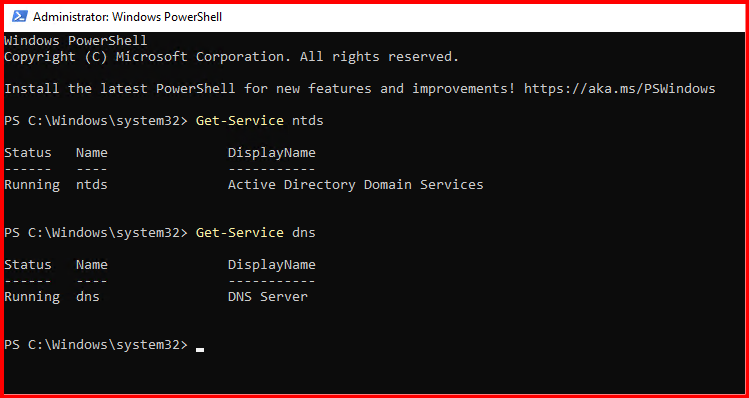
Verify the Deleted Zone and records for our Demo:
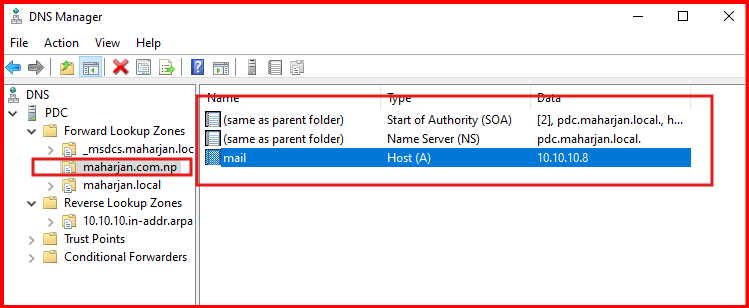
Done!
What Directory Services Restore Mode (DSRM) can perform?
A special boot mode for Domain Controllers that gives you offline access to Active Directory. Because AD services are stopped, you can safely perform operations that would otherwise be blocked in normal mode.
1. Full System State Restore:
- Restore the entire system state using
wbadmin. - Includes Active Directory, SYSVOL, DNS (AD-integrated), registry, and boot files.
- Typically used after DC corruption, ransomware, or major AD/DNS failures.
2. Authoritative Restore of AD Objects
- Using
ntdsutil, you can perform an authoritative restore of AD objects. (ntdsutil>activate instance ntds>authoritative restore) - Allows you to mark specific objects (like OUs, users, or entire domains) as authoritative so they replicate to other DCs after reboot.
3. Non-Authoritative Restore of AD
- Standard system state restore without marking objects authoritative.
- The restored DC will synchronize from other healthy DCs after reboot.
4. Restore AD-Integrated DNS
- Because DNS data for AD-integrated zones is stored in AD, you can:
- Restore entire DNS zones and records using system state backup.
- Only possible fully in DSRM; in normal mode AD is live and cannot be overwritten.
5. Repair or Replace NTDS Database
- You can mount or replace the NTDS.dit database.
- Useful if your AD database is corrupted and you want to restore from backup.
6. Reset DSRM Administrator Password
- If you forget the DSRM password, you can reset it in DSRM: (ntdsutil>set dsrm password>reset password on server null)
7. Perform Offline AD Maintenance
- Compact or repair NTDS database using (
esentutl:esentutl /p "C:\Windows\NTDS\ntds.dit") - Can recover from minor corruption without restoring a full backup.
Conclusion
DNS is the heart of Active Directory, and having a strong backup and restore strategy is crucial for smooth domain operations. By relying on built-in tools like Windows Server Backup and PowerShell, you can easily automate and protect your DNS environment.
Following this guide ensures you can recover quickly from corruption, accidental deletions, or failures—and maintain a healthy AD infrastructure.
Leave a Reply