Introduction
In an era where data breaches can define the reputation of an organization, securing “data at rest” is no longer optional—it is a baseline requirement. For many IT administrators, BitLocker is the go-to solution, but a truly enterprise-grade deployment requires much more than just “turning it on.” It requires a strategic, infrastructure-first approach to ensure that security doesn’t come at the cost of manageability or data loss.
In this new series, I am documenting the end-to-end process of deploying a robust BitLocker policy across a modern infrastructure. We begin Part 1 by focusing on the foundation: preparing Windows Server 2025 and Active Directory to act as a secure, centralized vault for recovery keys. Before a single byte of data is encrypted on our workstations, we must ensure our environment is ready to handle the keys to the kingdom.
From installing essential RSAT tools to enforcing GPOs that prevent “orphaned” encrypted drives, this post covers the critical steps needed to establish a fail-safe security baseline for the Operating System drive.
1. Install the BitLocker Features
Before deploying your GPO, ensure the underlying environment is equipped with the BitLocker management modules. You can initialize these components by running this command in an elevated PowerShell session on your server:
Install-WindowsFeature BitLocker -IncludeManagementTools
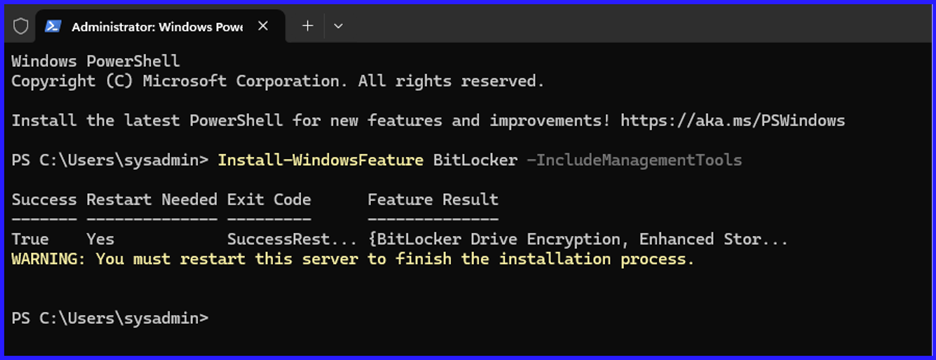
Restart-Computer
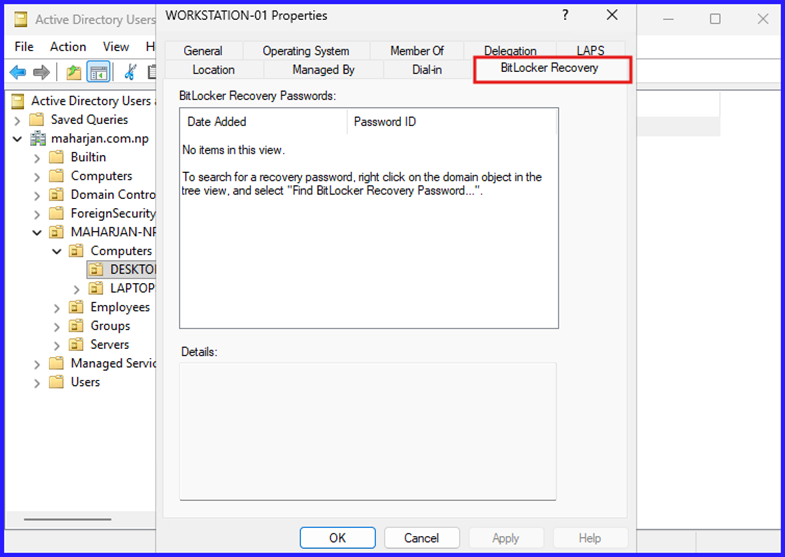
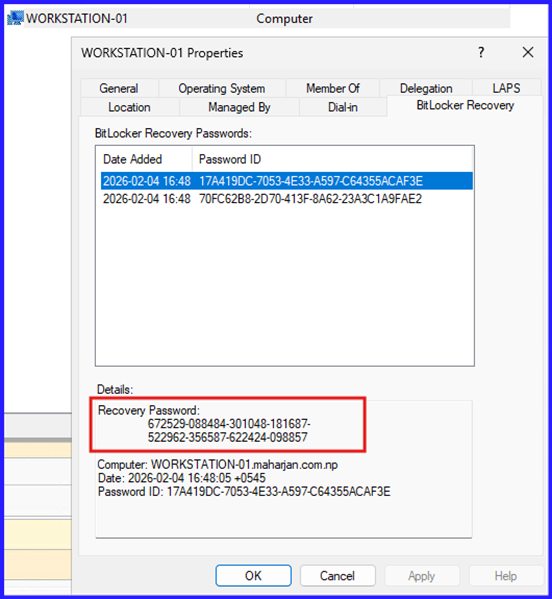
This installs the BitLocker Recovery Password Viewer, allowing you to see recovery keys directly in the Computer Object properties in AD.
2. The “Safety Net” GPO
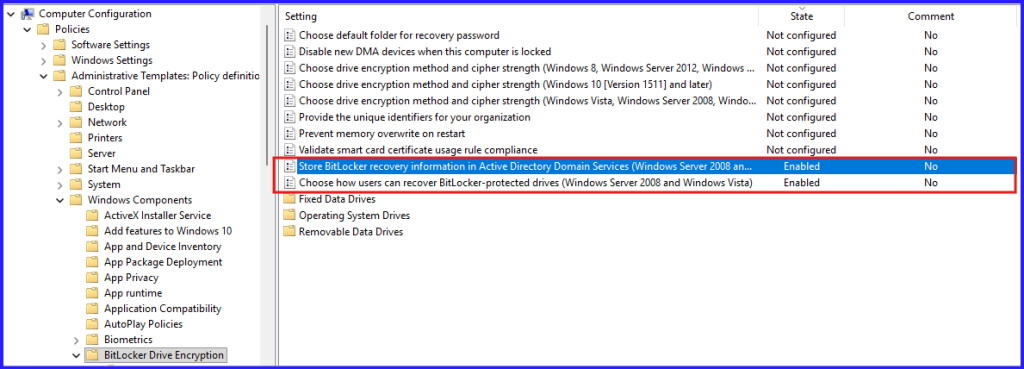
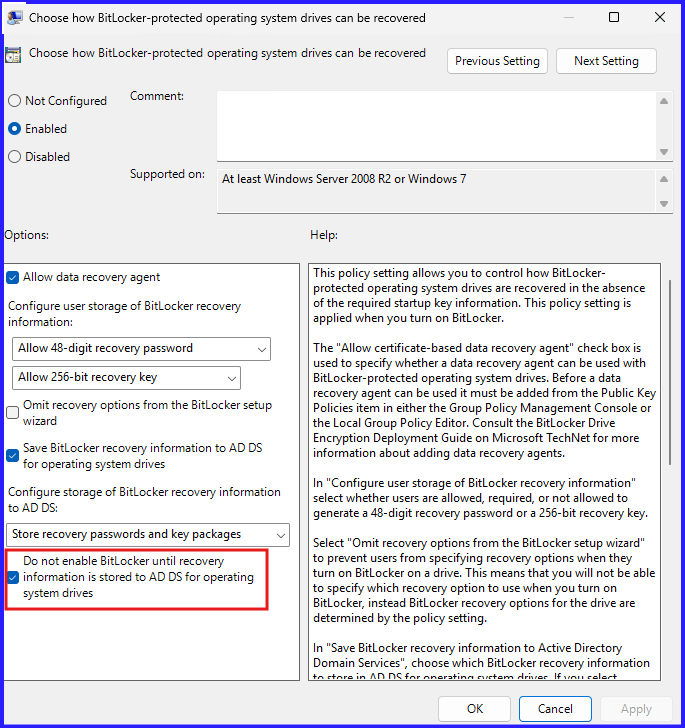
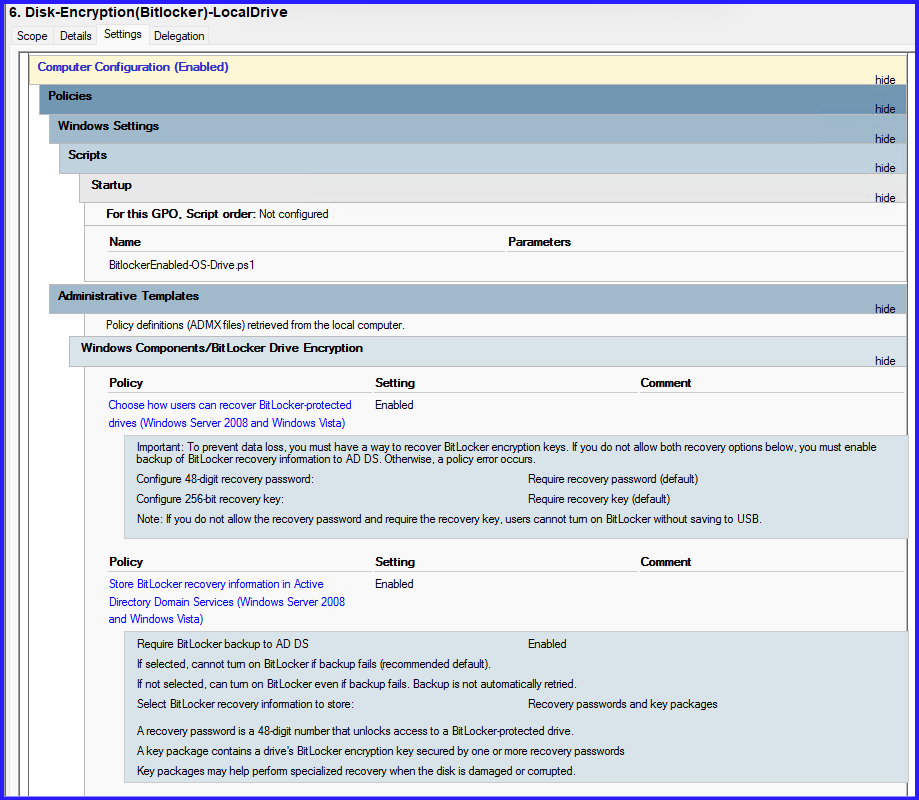
We need to tell Windows: “Do not start encrypting until you have successfully handed the recovery key to the Domain Controller.”
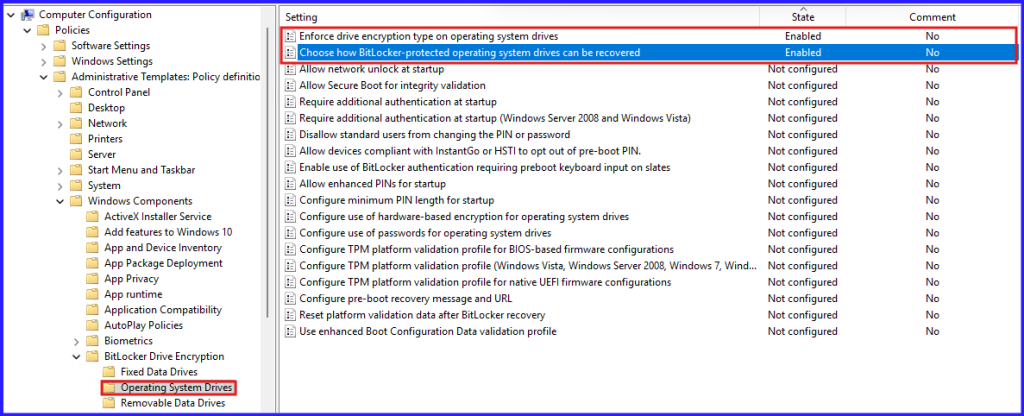
The Path: Computer Configuration > Policies > Administrative Templates > Windows Components > BitLocker Drive Encryption
The settings:
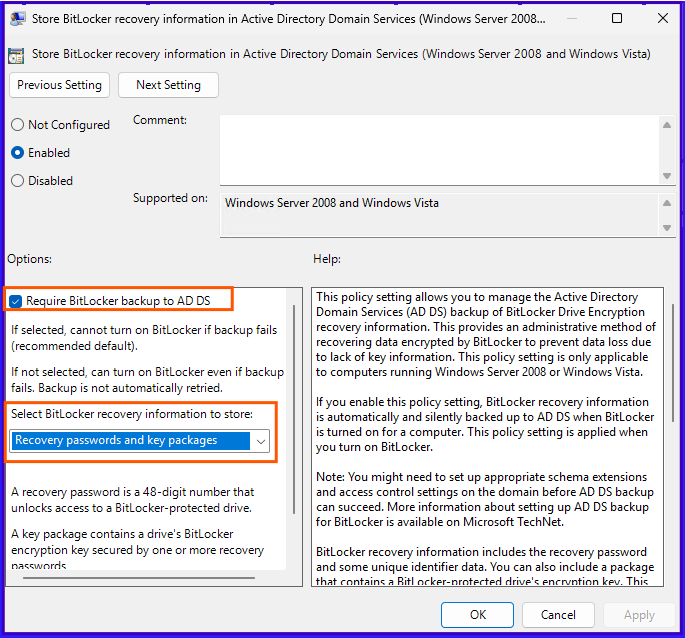
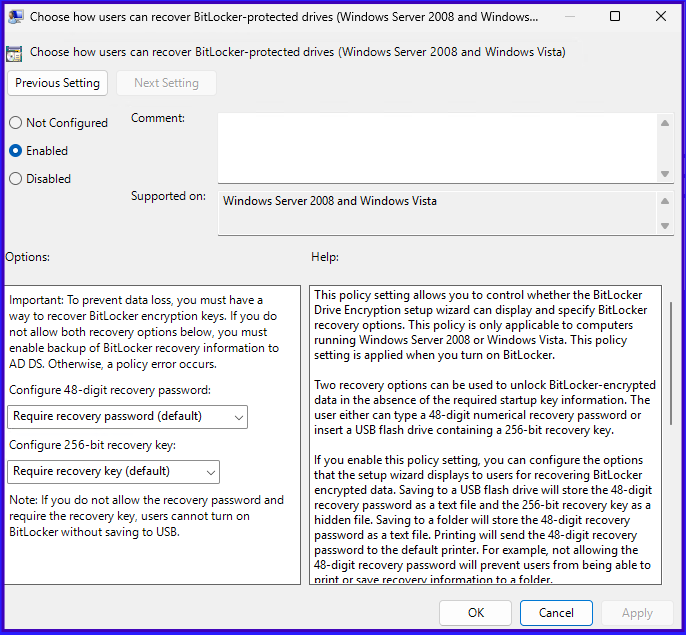
- Store BitLocker recovery information in Active Directory Domain Services: Set to Enabled.
- Check the box: “Require BitLocker backup to AD DS.”
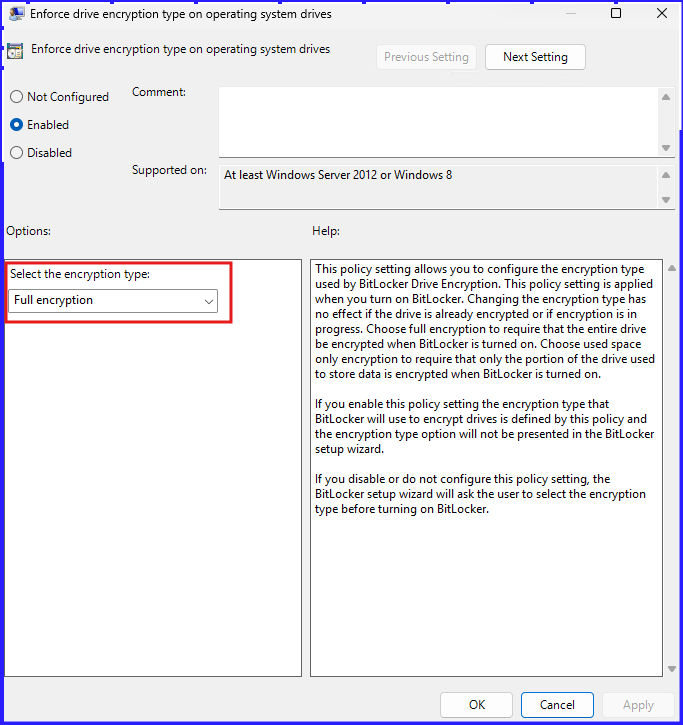
- Crucial Setting: Under the specific drive folders (OS/Fixed), enable the policy to “Do not enable BitLocker until recovery information is stored in AD DS.” This prevents “orphaned” encrypted drives with no known recovery key.
3. Automated Deployment via PowerShell
To trigger the encryption on the C: drive without waiting for user interaction, you can push this script:
#Used to enable Bitlocker on physical or HyperV VMs.

#Checks to see if BitLocker is already enabled and exits script if it is.
$checkBitLocker = Get-BitLockerVolume -MountPoint "C"
If ($checkBitLocker.ProtectionStatus -eq "On")
{
    Exit
}

#Dismounts external device
$vol= (Get-WmiObject -Class Win32_Volume | where {$_.drivetype -eq '2' -or $_.drivetype -eq '5'}  )

foreach ($disks in $vol)  {
    $Eject =  New-Object -comObject Shell.Application
    $Eject.NameSpace(17).ParseName($disks.driveletter).InvokeVerb("Eject")
}

Start-Sleep -s 8

#generates key if one does not exist
$keyID = Get-BitLockerVolume -MountPoint c: | select -ExpandProperty keyprotector |
            where {$_.KeyProtectorType -eq 'RecoveryPassword'} #captures key

If ($keyID -eq $Null) {
    cmd /c manage-bde.exe -protectors -add c: -recoverypassword #generates a Numerical Password
    $keyID = Get-BitLockerVolume -MountPoint c: | select -ExpandProperty keyprotector |
            where {$_.KeyProtectorType -eq 'RecoveryPassword'} #captures key
}

#enables Bitlocker and saves key to AD
Backup-BitLockerKeyProtector -MountPoint c: -KeyProtectorId $keyID.KeyProtectorId
Enable-BitLocker -MountPoint C: -SkipHardwareTest -RecoveryPasswordProtector
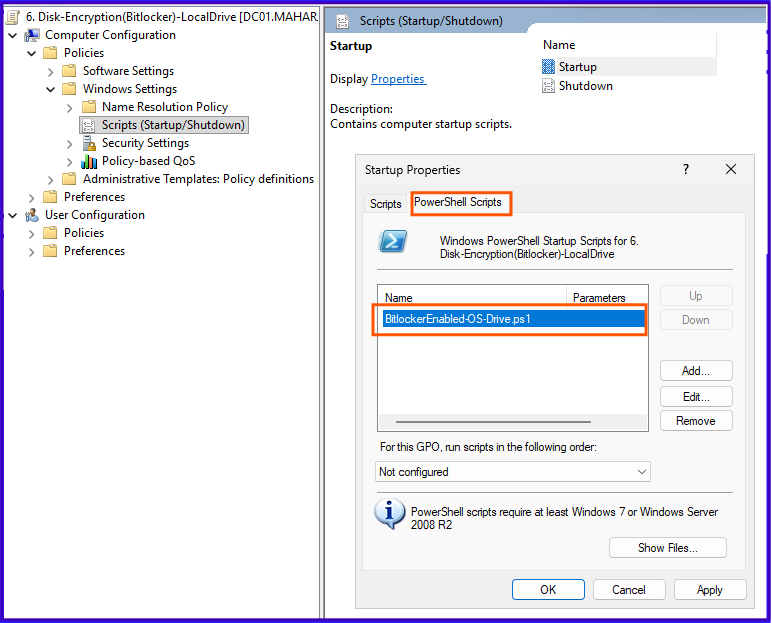
Save it as BitlockerEnabled-OS-Drive.ps1
Edit Startup policy using PowerShell script.
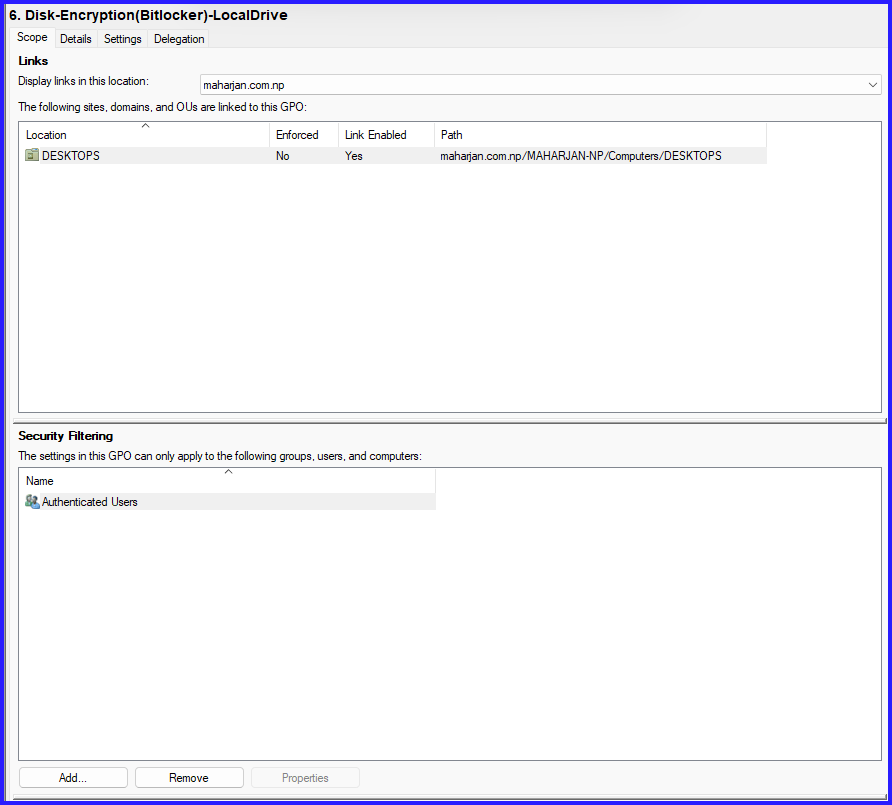
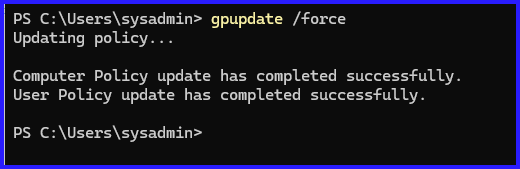
Step4: Link the GPO policy to Specific OU and force update.
Step5: Prior to rebooting, verify the encryption status of the Local Disk (C:) on the workstation to ensure the BitLocker process has initialized correctly.
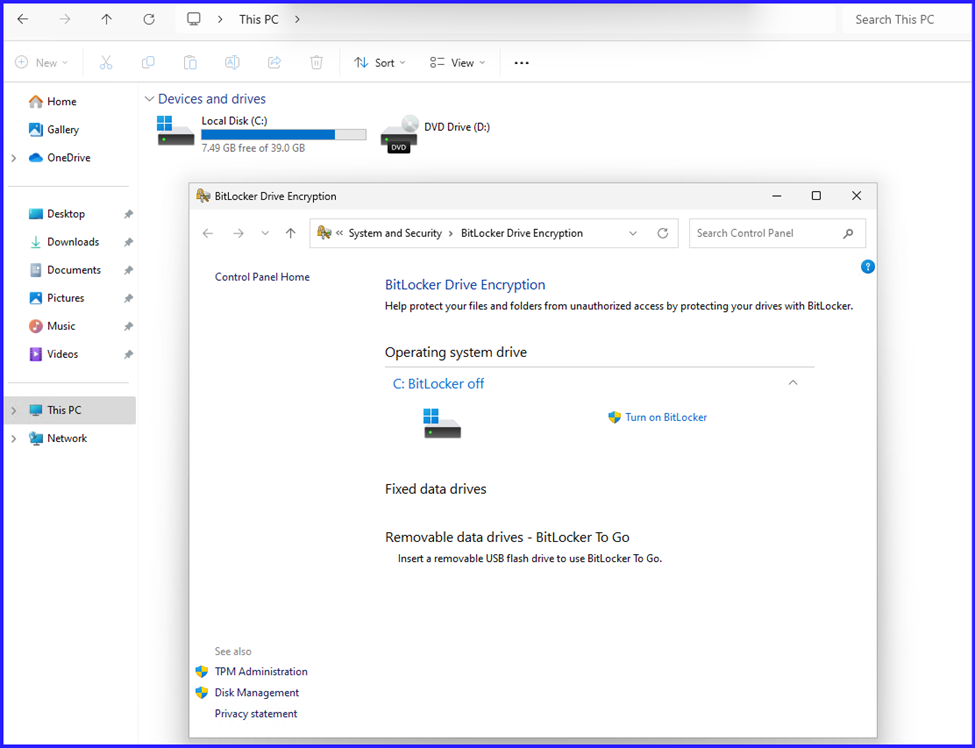
Not applied. Gpupdate /force and rebooted the pc.
After Login.
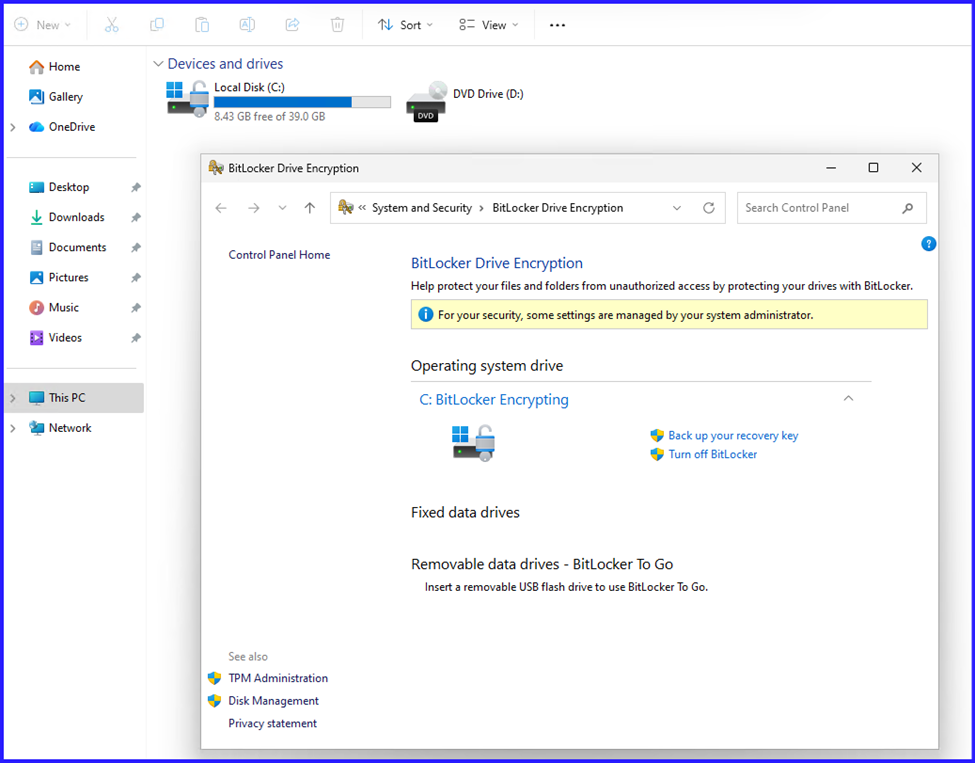
Done.
Step6: Ensure BitLocker Recovery Password Shown in Active Directory.
Summary: The Infrastructure Baseline
In this first phase of our BitLocker deployment, we shifted the focus from simple encryption to infrastructure readiness. The process began with the installation of the BitLocker Drive Encryption features on our Windows Server 2025 domain controllers. By verifying the presence of the BitLocker Recovery tab in Active Directory, we ensured a centralized method for key management. We then enforced a critical GPO requiring a successful recovery key backup to AD DS before encryption could proceed on the client side. Finally, we utilized PowerShell to initialize XTS-AES 256-bit encryption on the Operating System (C:) drive, verifying the protection status on the workstation to ensure a successful security hand-off between the server and the endpoint.
Conclusion: Security Starts with Preparation
Establishing a secure environment is not about flipping a switch; it is about building a foundation that can be managed and recovered under any circumstance. By taking an infrastructure-first approach in this project, we have ensured that every encrypted workstation is backed by a verifiable recovery key in Active Directory. This not only hardens our security posture but also protects IT operations from the risks of accidental lockout. With the Operating System drive now successfully protected and our recovery vault established, we have created the necessary baseline to extend our security reach.
In the next part of this series, we will move beyond the boot drive to secure Fixed Data Drives, exploring how to automate protection for secondary internal storage while maintaining a seamless experience for our users through Auto-Unlock.