Introduction
In Part 2, we secured our internal fixed drives. But a common question from IT managers is: “What happens to the policy when the hardware changes?” In this post, we are going to pressure-test our GPO. We will look at what happens when a new drive is added to an already encrypted system and, more importantly, what happens when an encrypted drive is moved to a completely different laptop.
Scenario 1: Adding a New “Clean” Drive
Imagine you just added a new SSD (e.g., a new G: drive) to a workstation that is already under your BitLocker GPO.
What happens? The GPO itself is a “Policy,” not a “one-time event.” However, the GPO only authorizes and configures the settings; it doesn’t always force the encryption of a brand-new drive the second it’s initialized unless you have an automation script running.
The Result:
- Write Access: If your GPO is set to “Deny write access to fixed drives not protected by BitLocker,” the user will be able to see the new G: drive but will be blocked from saving files to it.
- The Fix: You must run the PowerShell “Loop and Encrypt” script we discussed in Part 2. Because the GPO is already assigned to the OU, the script will instantly find the new G: drive, apply the XTS-AES 256-bit encryption, and backup the key to Active Directory.
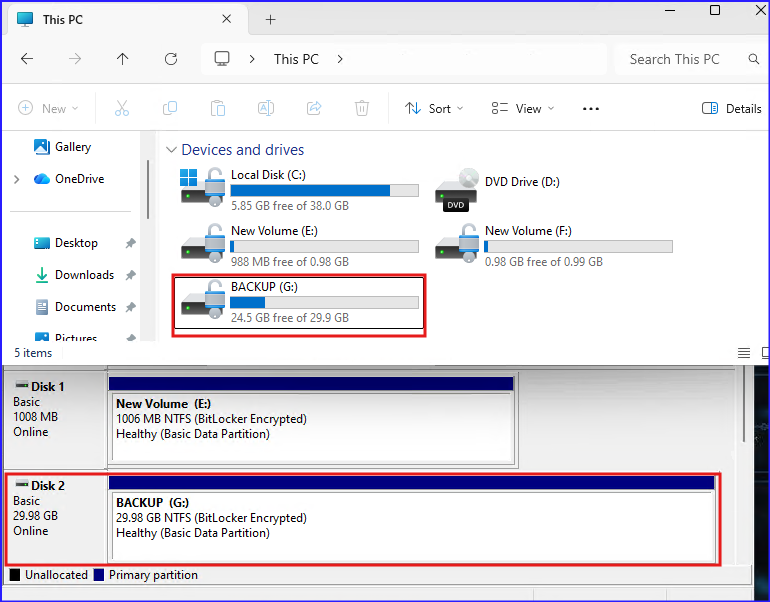
Upon successful encryption of the new G: volume, the recovery password is automatically backed up to AD. Administrators can retrieve this 48-digit key using the same process outlined in our previous post on infrastructure preparation.
Scenario 2: Detaching and Moving an Encrypted Drive
This is the ultimate test of BitLocker portability. What happens if you take a Fixed drive encrypted and plug it into a new laptop or a home PC? Assume in case of taking backup of disk by mounting in another device.
The Behavior:
- Unauthorized Access: When the disk is attached to a new laptop, Windows will recognize the BitLocker metadata. The drive will appear in File Explorer with a Gold Padlock icon.
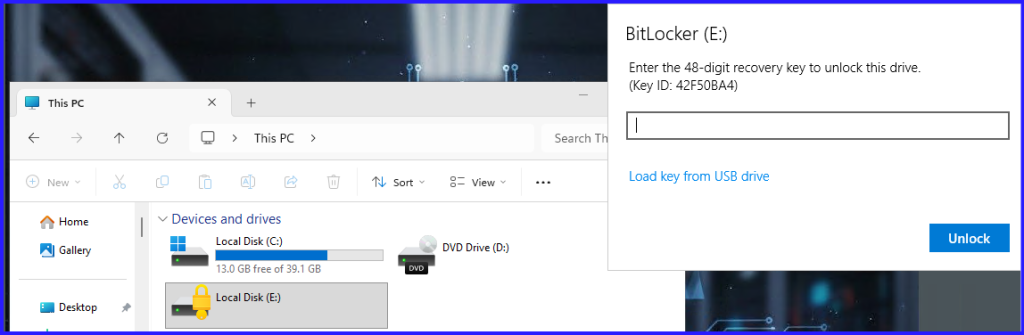
- The Prompt: The user will be prompted for the Password or the 48-digit Recovery Key.
- No Auto-Unlock: Because “Auto-Unlock” is tied to the specific TPM and OS drive of the original laptop, it will not work on the new machine. The user must authenticate manually.
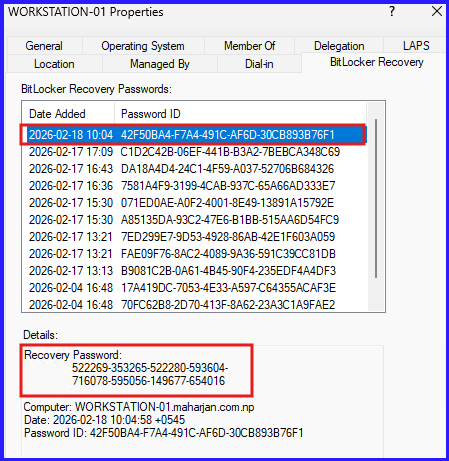
- Security: Without the password or the key from your Windows Server 2025 AD, the data is completely unreadable.
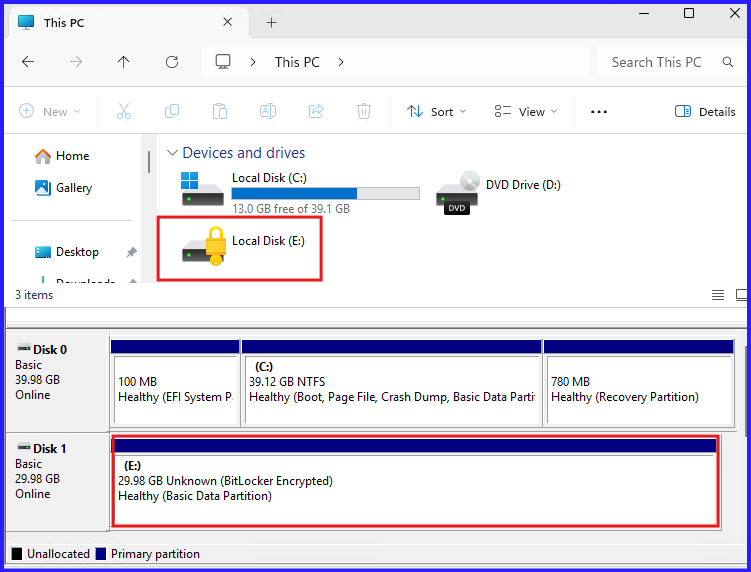
Moving an encrypted E: drive to a different machine effectively demonstrates the persistence of BitLocker. Upon connection to the new laptop, the volume remains fully encrypted and inaccessible. To bypass the security layer, the user is prompted to provide the 48-digit recovery key, which can be retrieved from Active Directory as established in Part 2.
Conclusion
BitLocker is not just a “set and forget” feature; it is a dynamic identity for your data. Whether you add new drives or move existing ones across the office, the encryption follows the data. By using the recovery tools in Windows Server 2025, you ensure that while the data is “locked” to outsiders, it is always “recoverable” by your IT team.